
Create an account & sign in
Sign up with Google or with your email address, then sign in on the web or on your Android phone.
One ArogyaKosha account works on both the web portal and the Android app. You can create it with your Google account or with an email address and password. Every new account starts with a 7-day free trial of all features — no payment details needed.
You must be 18 or older to create an account. Children's records are kept as dependents inside a parent's family vault.
Create your account
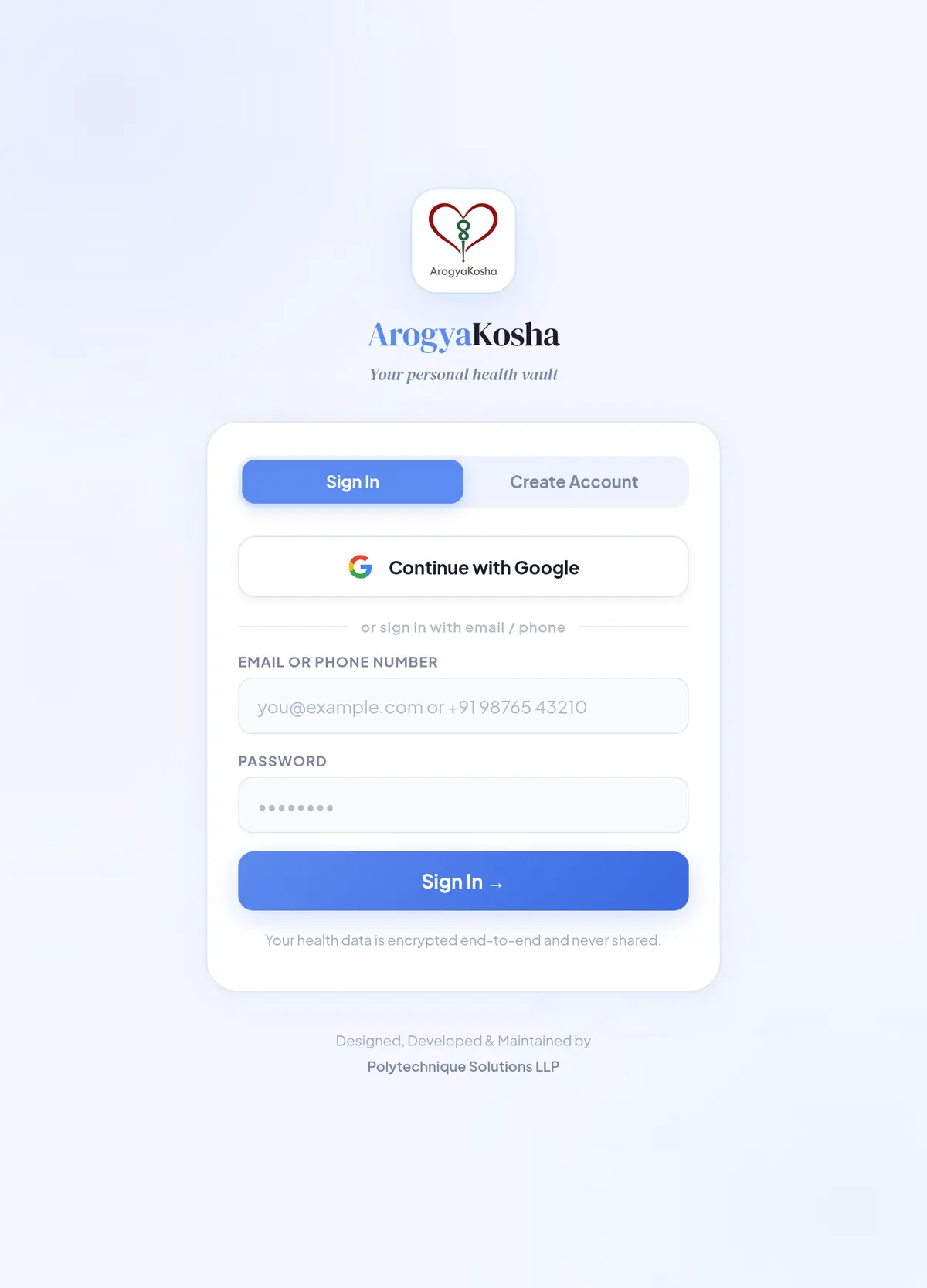
- Open the sign-in pageGo to arogyakosha.in/login and choose the Create Account tab.
- Pick how to sign upChoose Sign up with Google to use your Google account, or Register with Email.
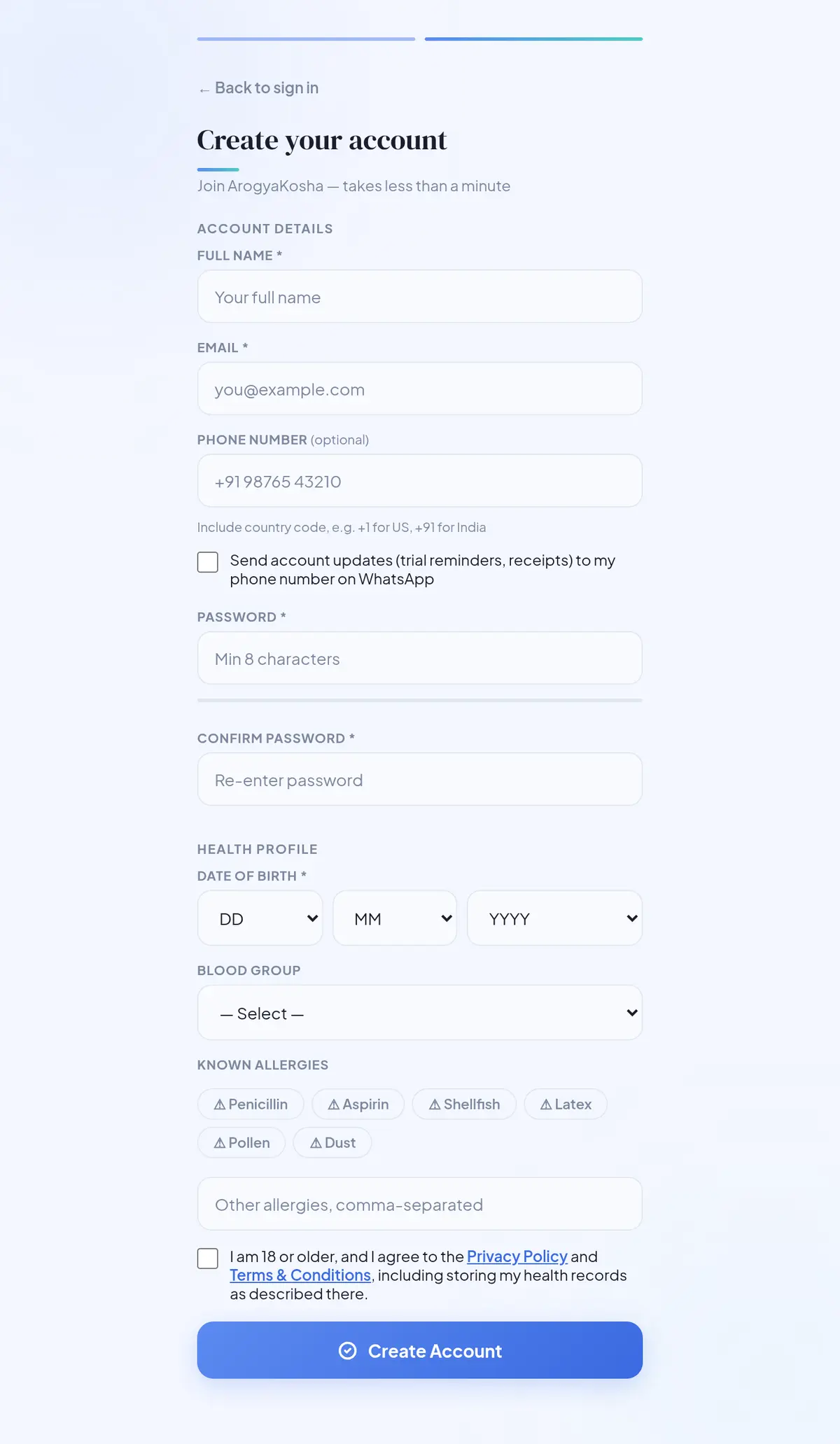
- Fill in your detailsEnter your full name, email, a password of at least 8 characters, and your date of birth. Phone number, blood group and allergies are optional — you can add them later from your profile. Tick the box to receive trial reminders and receipts on WhatsApp if you'd like them.
- Accept the termsConfirm you are 18 or older and agree to the Privacy Policy and Terms, then select Create Account.
- Set your Vault PINYou're taken straight to Vault PIN setup.
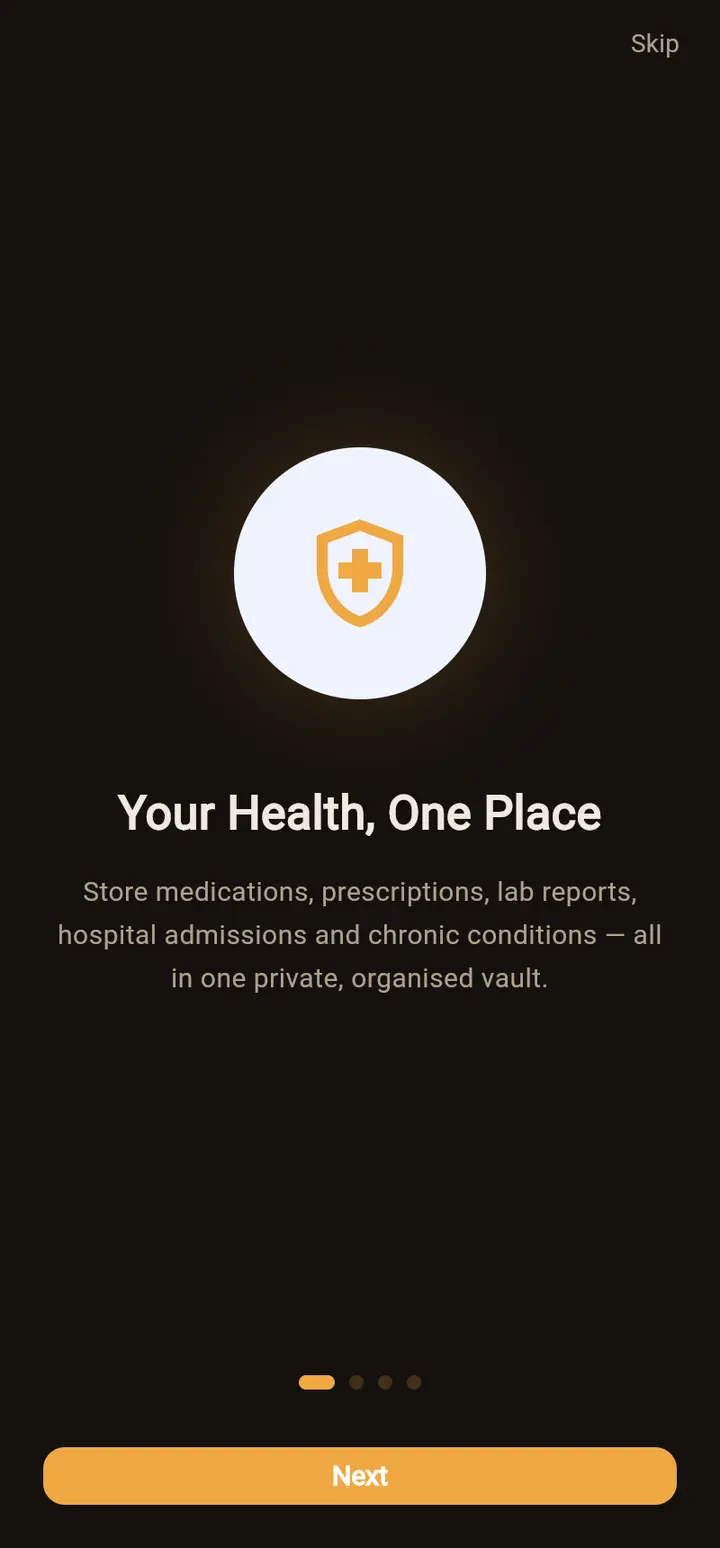
- Install the appInstall ArogyaKosha from Google Play and open it. Swipe through the short introduction or tap Skip.
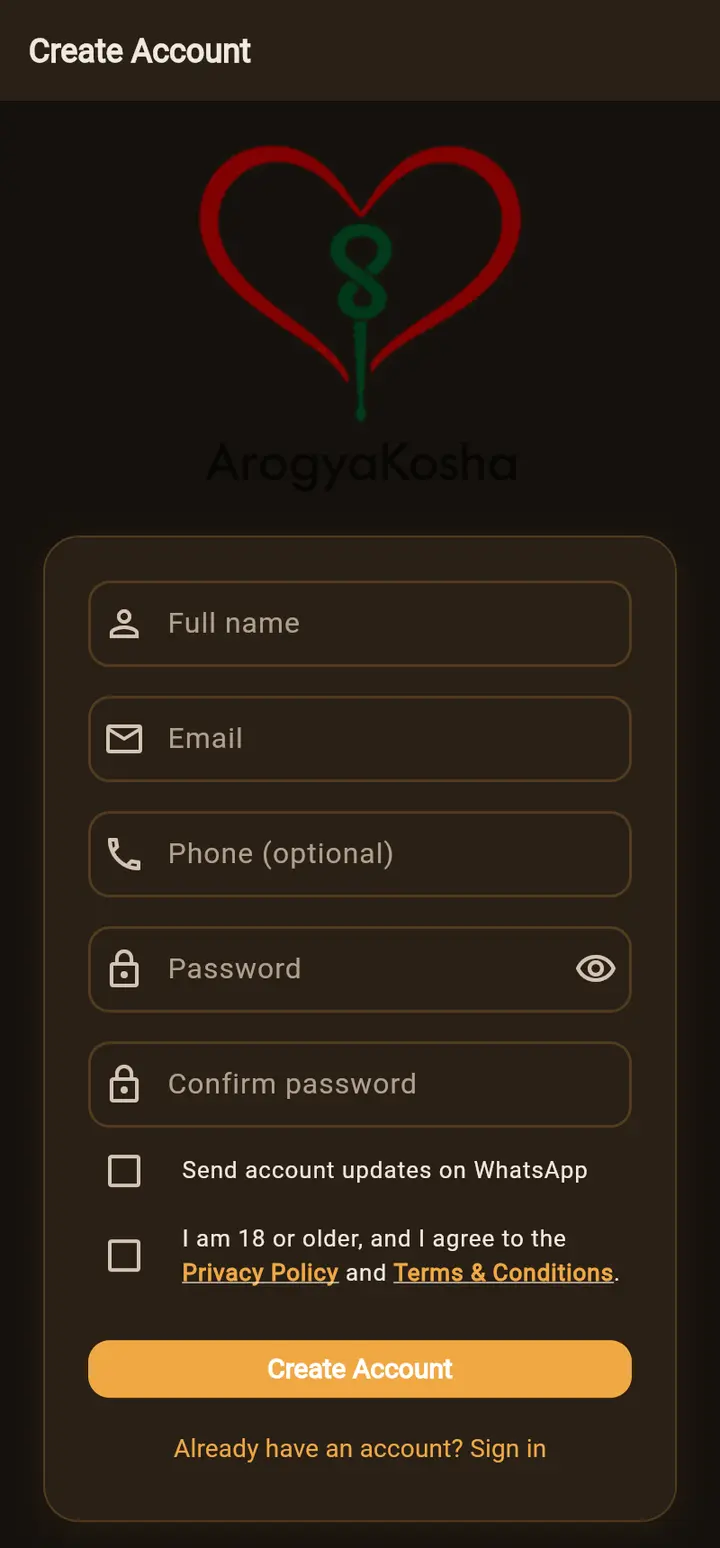
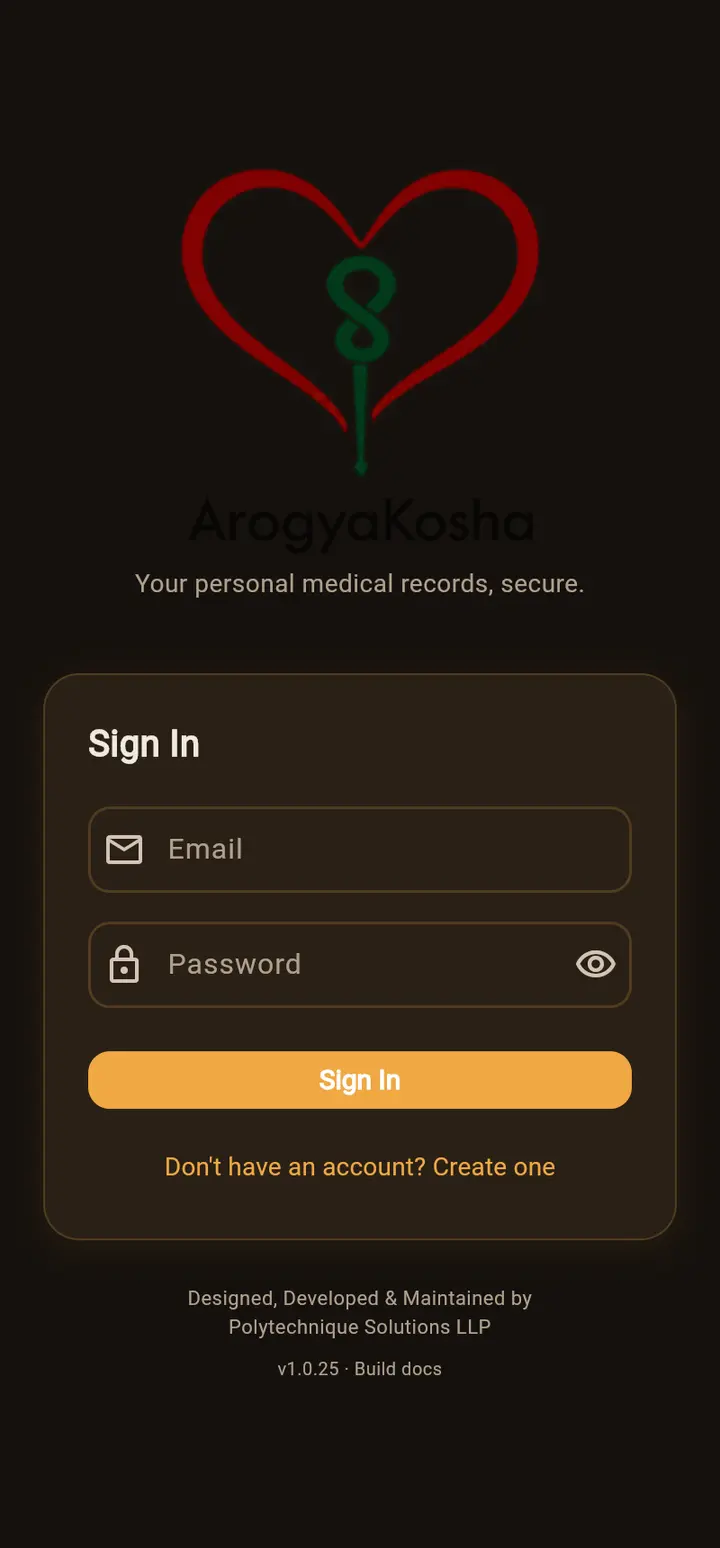
- Choose how to sign upTap Sign in with Google to use your Google account, or tap Don't have an account? Create one to sign up with email.
- Fill in your detailsEnter your full name, email and a password (entered twice). Phone number is optional. Tick the WhatsApp box if you want account updates there.
- Accept the termsTick I am 18 or older, and I agree to the Privacy Policy and Terms & Conditions, then tap Create Account.
- Set your Vault PINThe app moves on to Vault PIN setup. Add your date of birth and blood group later under Profile → edit.
If you were invited to a family
When someone invites you to their family vault, you get an email with a join link. Sign up using the same email address the invitation was sent to. ArogyaKosha notices the invitation as you type your email and asks for the family's Vault PIN — get it from the person who invited you. Enter it and choose Verify & Join, and your new account joins their family. You can also Skip and create a standalone account instead. See Inviting members & joining a family.
Sign in
On arogyakosha.in/login, either select Continue with Google, or type your email or phone number and password and select Sign In. After signing in you'll be asked for your Vault PIN.
A web sign-in lasts up to 7 days on that browser. Use Log out (the power icon at the top, or the bottom of the ☰ menu) on shared computers.
Tap Sign in with Google, or enter your email and password and tap Sign In. The app remembers you, so next time it opens straight to the Vault PIN screen.
After your first sign-in the app offers biometric login. Choose Enable to unlock with your fingerprint or face from then on. You can turn this on or off later under Profile → Biometric Login.
Trouble signing in?
- “Invalid email or password” — check for typos and caps lock. If you signed up with Google, use the Google button instead — there is no separate password.
- “Too many failed attempts” — after 5 wrong passwords the account is paused for 15 minutes to protect it. Wait, then try again.
- Forgot your password — contact support from the email address on your account and we'll help you reset it. Your records stay safe: resetting your password does not change your Vault PIN.