
Invite members & join a family
Invite an adult to your family vault by email, and what the person you invite needs to do to join.
Adults join a family by email invitation. The invitation proves the email belongs to them, and the family's Vault PIN proves the family trusts them. Both are needed, so nobody can join your family by guessing its name.
Send an invitation
- Open FamilySelect Family in the bottom bar, then + next to Account Members.
- Enter their emailType the email address they'll use for ArogyaKosha and select Generate invite link.
- Share the PIN separatelyArogyaKosha emails them a join link, which is valid for 48 hours, and also shows it to you to copy. Tell them the family's Vault PIN in person or by phone — never in the same message as the link.
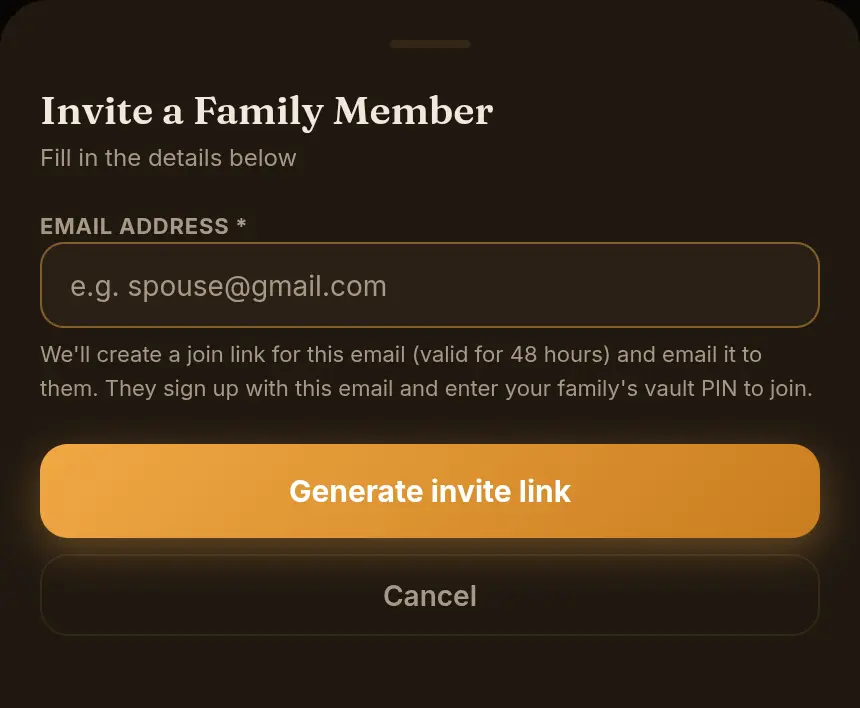
- Open FamilyTap Family, then Invite Member.
- Enter their emailType their email address and send the invitation. ArogyaKosha emails them a join link valid for 48 hours.
- Share the PIN separatelyTell them the family's Vault PIN in person or by phone.
Pending invitations
Invitations that haven't been used yet are listed under Pending invitations with their expiry date. From there you can copy the link again or cancel the invitation — a cancelled link stops working immediately. If an invitation expires, simply send a new one.
Joining a family (for the person invited)
If you don't have an ArogyaKosha account yet
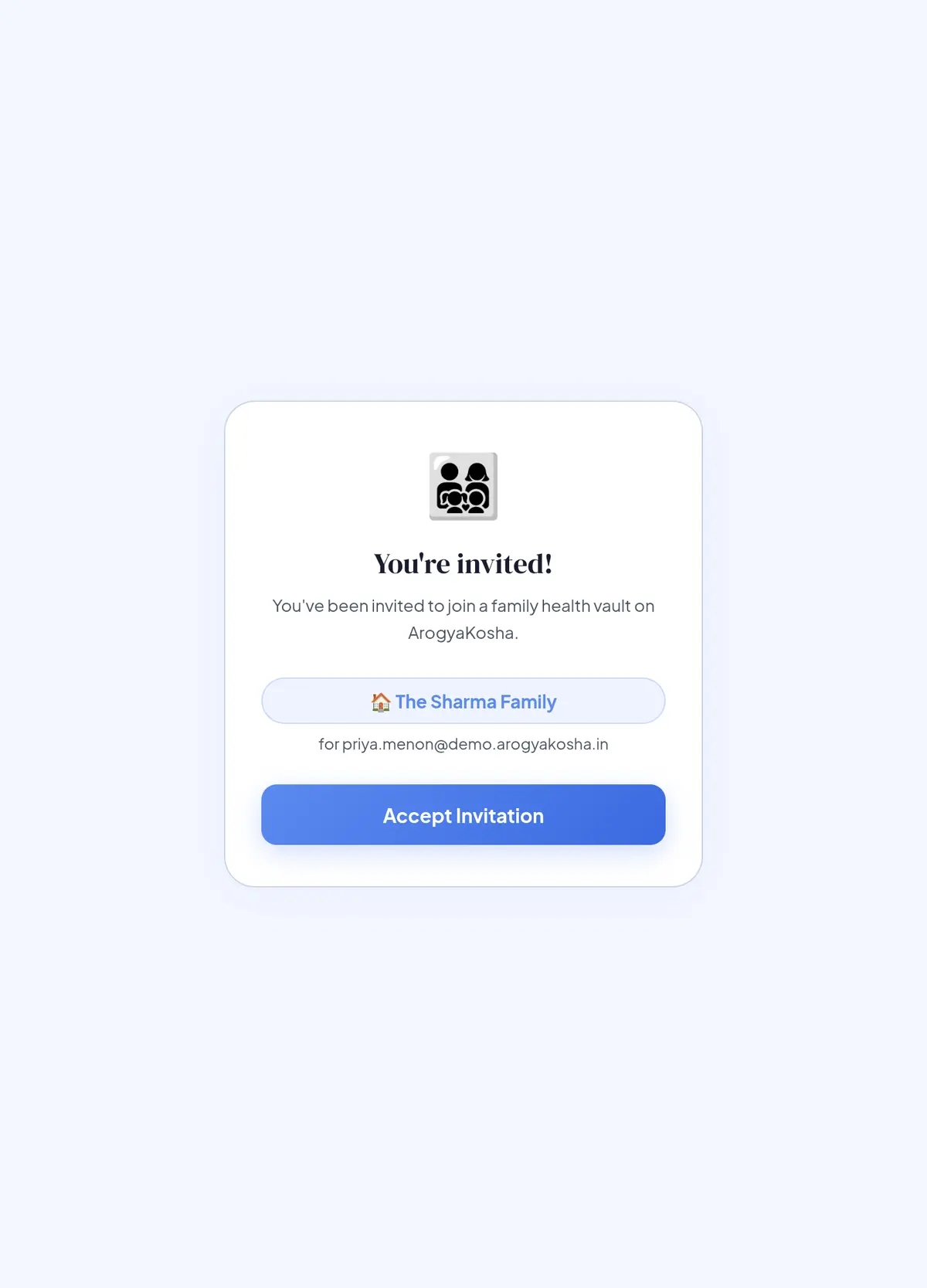
- Open the link in the emailYou'll see the family's name and an Accept Invitation button.
- Sign up with the invited emailCreate your account — on the web or in the Android app — using the same email address the invitation was sent to.
- Enter the family PINArogyaKosha recognises the invitation and asks for the family's Vault PIN. Enter it and choose Verify & Join. You're in, and from now on you unlock with the family PIN.
If you already have an account
Open the link on the web while signed in with the invited email (you'll be asked to sign in first if you aren't). Accepting moves you and your own records into the new family — see Move to another family for exactly what moves and what stays.
The family PIN never travels with the invitation. It's checked on your own device against the family's vault, so even ArogyaKosha never sees it.