
Share & export
Send a health summary to a doctor, print it, share a single document, or keep a backup of all your records.
Records stay private until you decide to share them. Every sharing option works on the active member's records, and decrypts them on your device just before sending.
Share a health summary
On Home, select Share Records. The summary covers medications, prescriptions, lab reports, admissions, diagnoses and conditions. Choose how to send it:
| Option | What happens |
|---|---|
| Opens WhatsApp with the summary as a message — pick the contact. | |
| Opens your email app with the summary filled in. | |
| 📤 More options | Uses your device's own share sheet (phones and tablets). |
| 🖨️ Print / Save as PDF | Opens a printable summary that also lists the documents on file. Choose Save as PDF in the print dialog to keep a copy. |
To share just one section, use the share icon at the top of Prescriptions, Lab Reports or Medical Records.
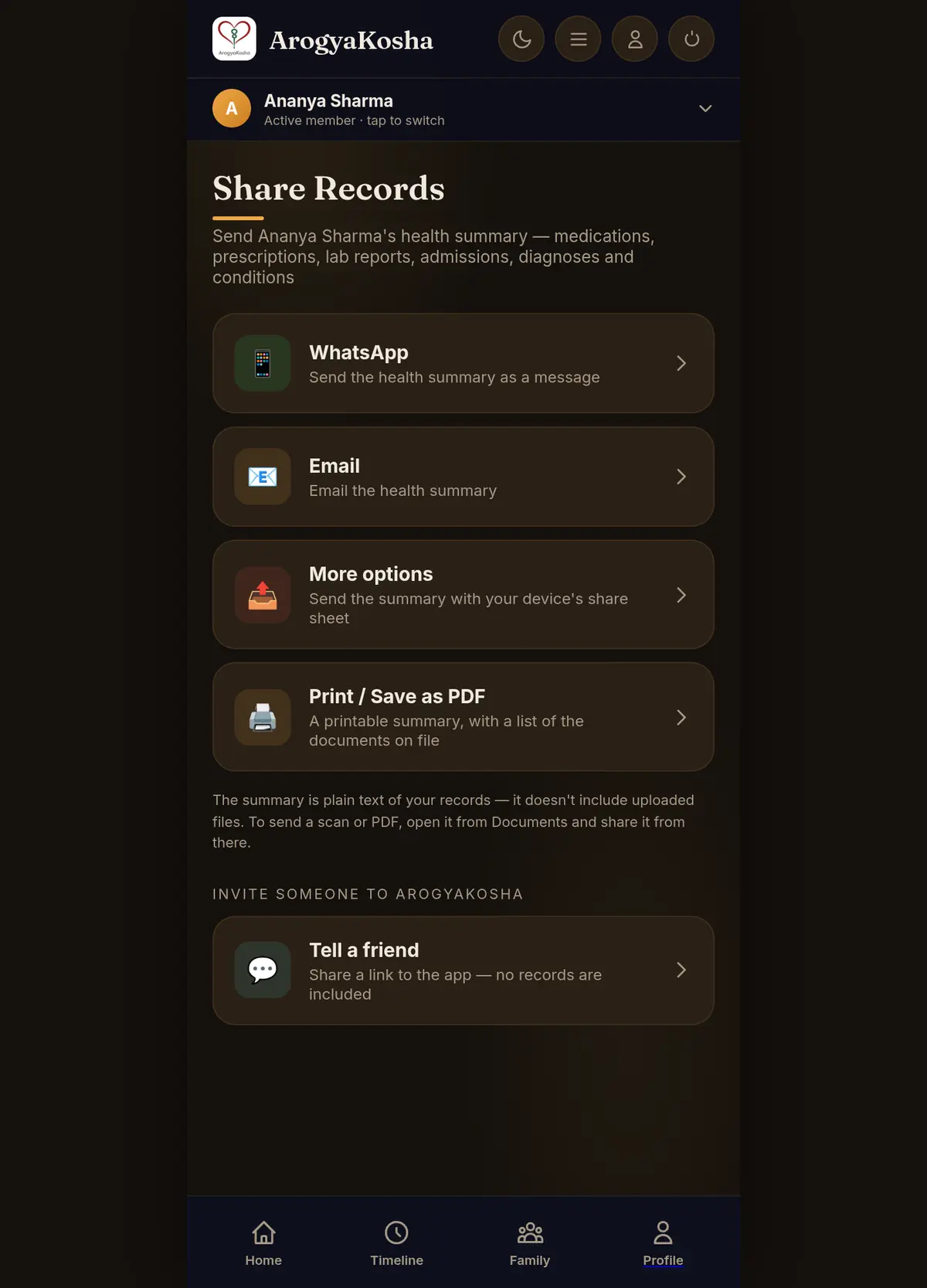
The summary is text only — uploaded files aren't attached. To send a scan or PDF, open it from Documents and share it from there.
Share a visit or a lab report as a password-protected PDF:
- Choose what to shareOpen Prescriptions or Lab Reports and tap Share in the ⋮ menu of the entry. A prescription's PDF includes everything recorded on that visit date — medicines, tests, diagnoses and conditions.
- Set a password for the recipientChoose a new password and confirm it. This is not your Vault PIN — it's only for opening this PDF.
- Send itPick WhatsApp, email or any other app from the share sheet. Tell the recipient the password separately, for example by phone.
To share an original file, open the document and tap Share at the bottom of its detail screen.
Back up & restore (Android app)
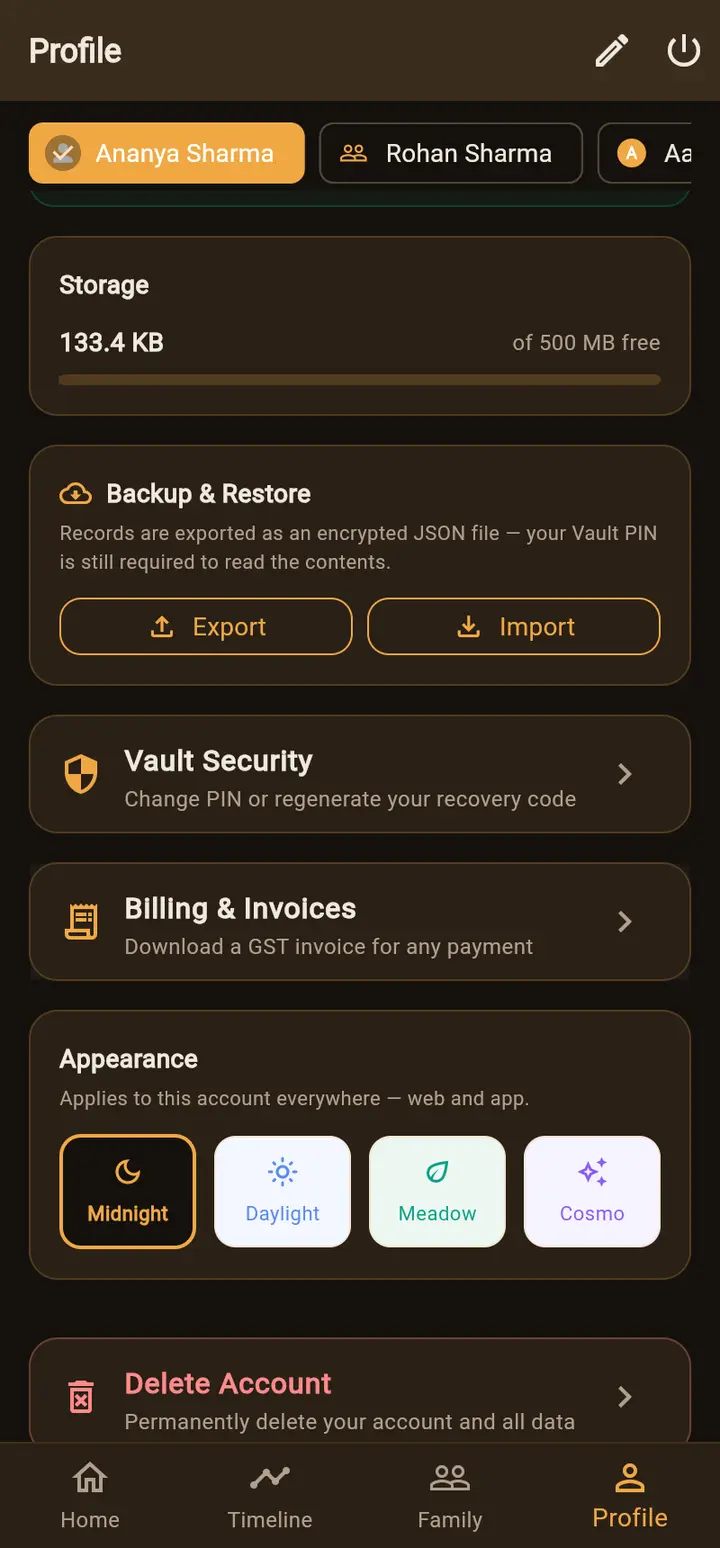
In the app, Profile → Backup & Restore lets you keep your own copy of your records:
- Export saves your records as an encrypted JSON file, which you can keep in Google Drive or send to yourself. It is still protected by your Vault PIN — it can't be read without it.
- Import restores records from such a file into your account.
Recommend ArogyaKosha
On the web Share Records screen, Tell a friend shares a link to ArogyaKosha. No records are included.
Once a summary or PDF has been sent, it's outside ArogyaKosha's protection. Share health information only with people you trust, such as your doctor.