
Vault PIN & recovery code
Your 6-digit Vault PIN encrypts your records on your own device. Here's how to set it, unlock with it, and get back in if you forget it.
The Vault PIN is the key to your records. ArogyaKosha uses it to encrypt everything you store before it leaves your phone or browser, so only someone who knows the PIN can read it. It is separate from your account password — your password lets you sign in, your PIN lets you see your data.
Keep your recovery code safe. If you forget your PIN, the recovery code is the only way back in. ArogyaKosha does not have a copy of either and cannot reset them for you.
Set up your Vault PIN
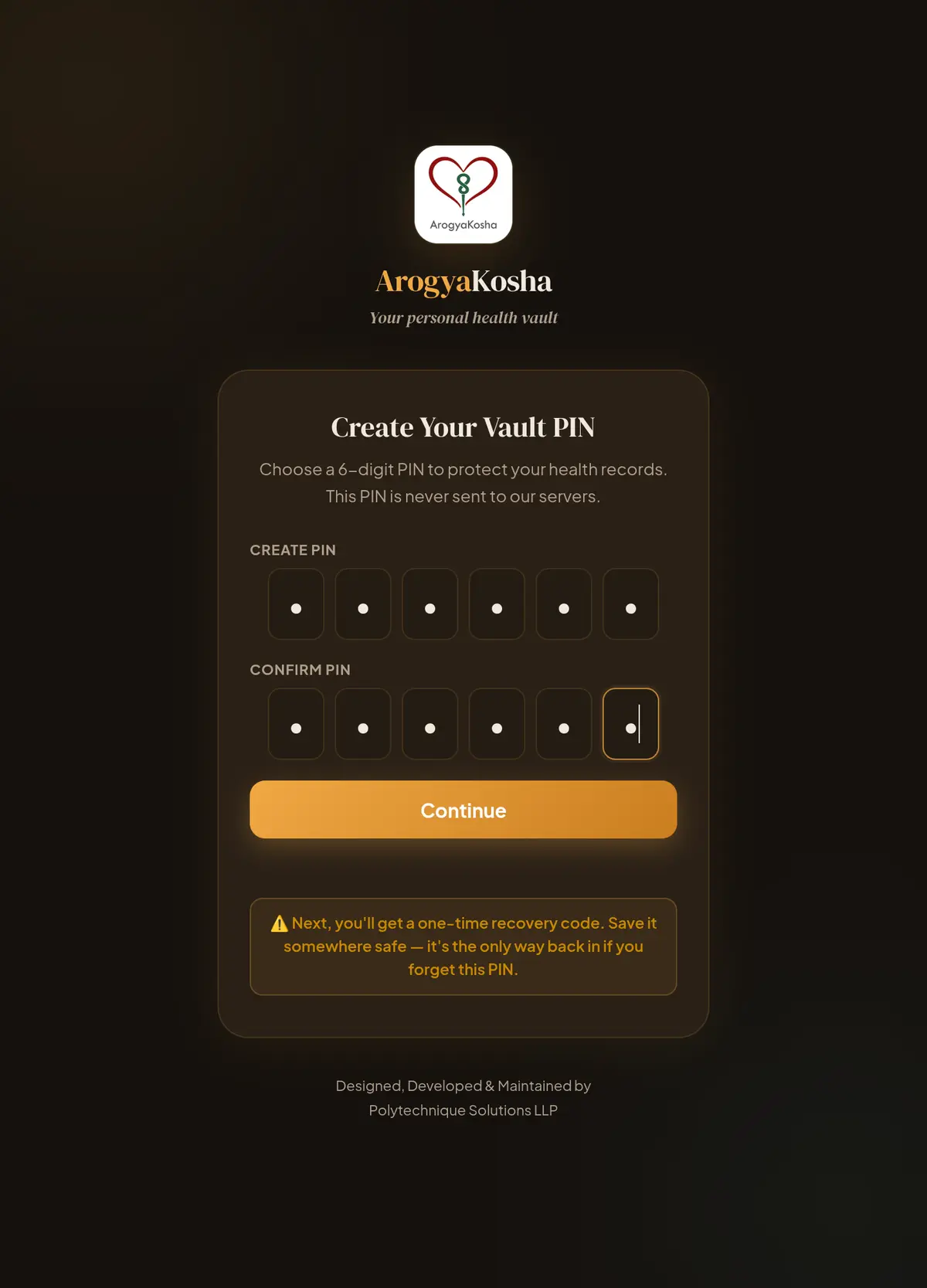
You set the PIN once, right after creating your account. In a family, only the family owner sets it — everyone in the family then uses that same PIN (see below).
- Choose a 6-digit PINType it in Create PIN and again in Confirm PIN, then select Continue. Avoid birthdays and easy sequences like 123456.
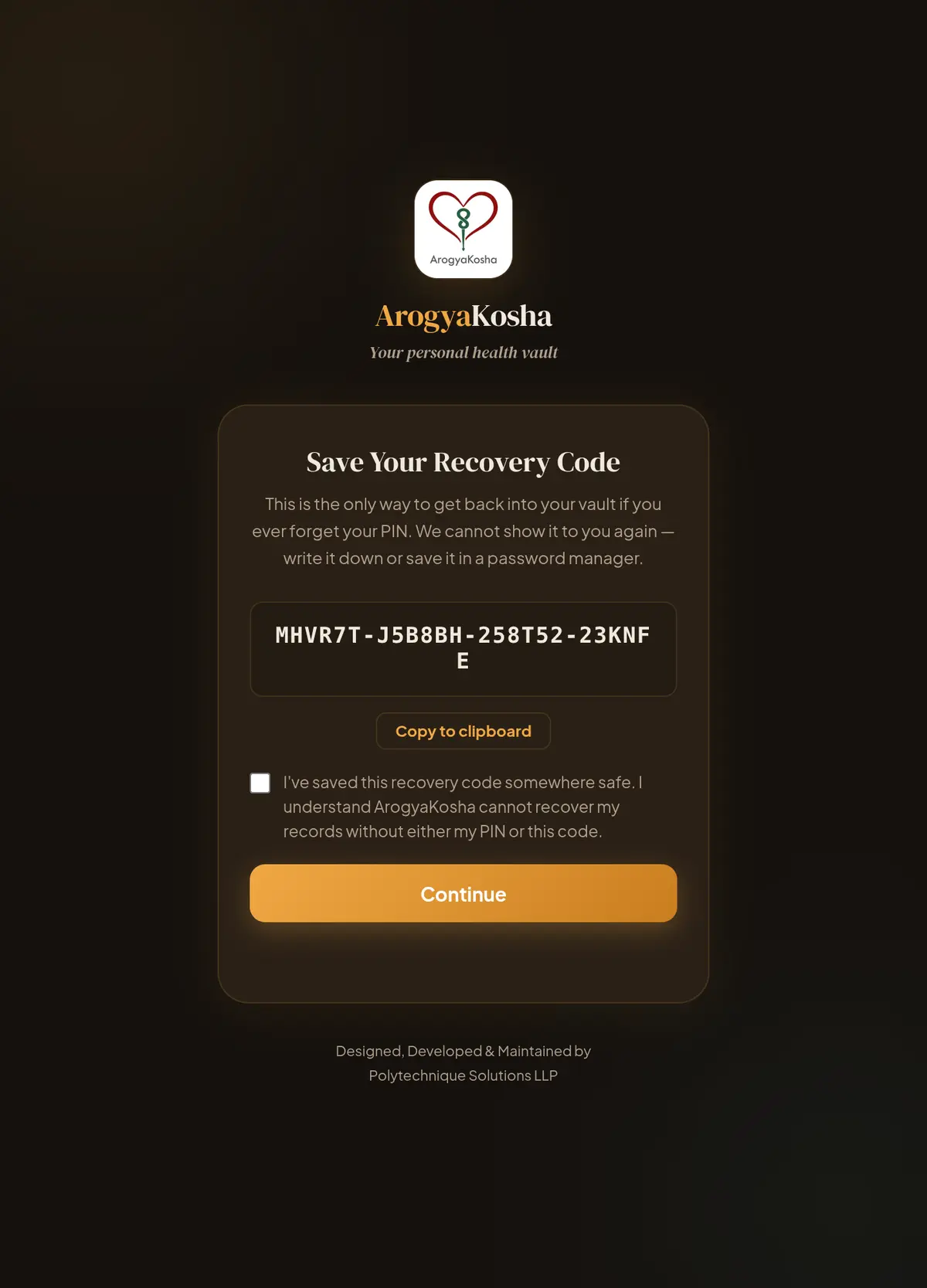
- Save your recovery codeArogyaKosha shows a one-time recovery code like
MHVR7T-J5BBBH-25BT52-23KNFE. Copy it into a password manager or write it down and keep it somewhere safe. It is shown only once. - Confirm and continueTick I've saved this recovery code somewhere safe and select Continue. Your vault is ready.
Unlock your vault
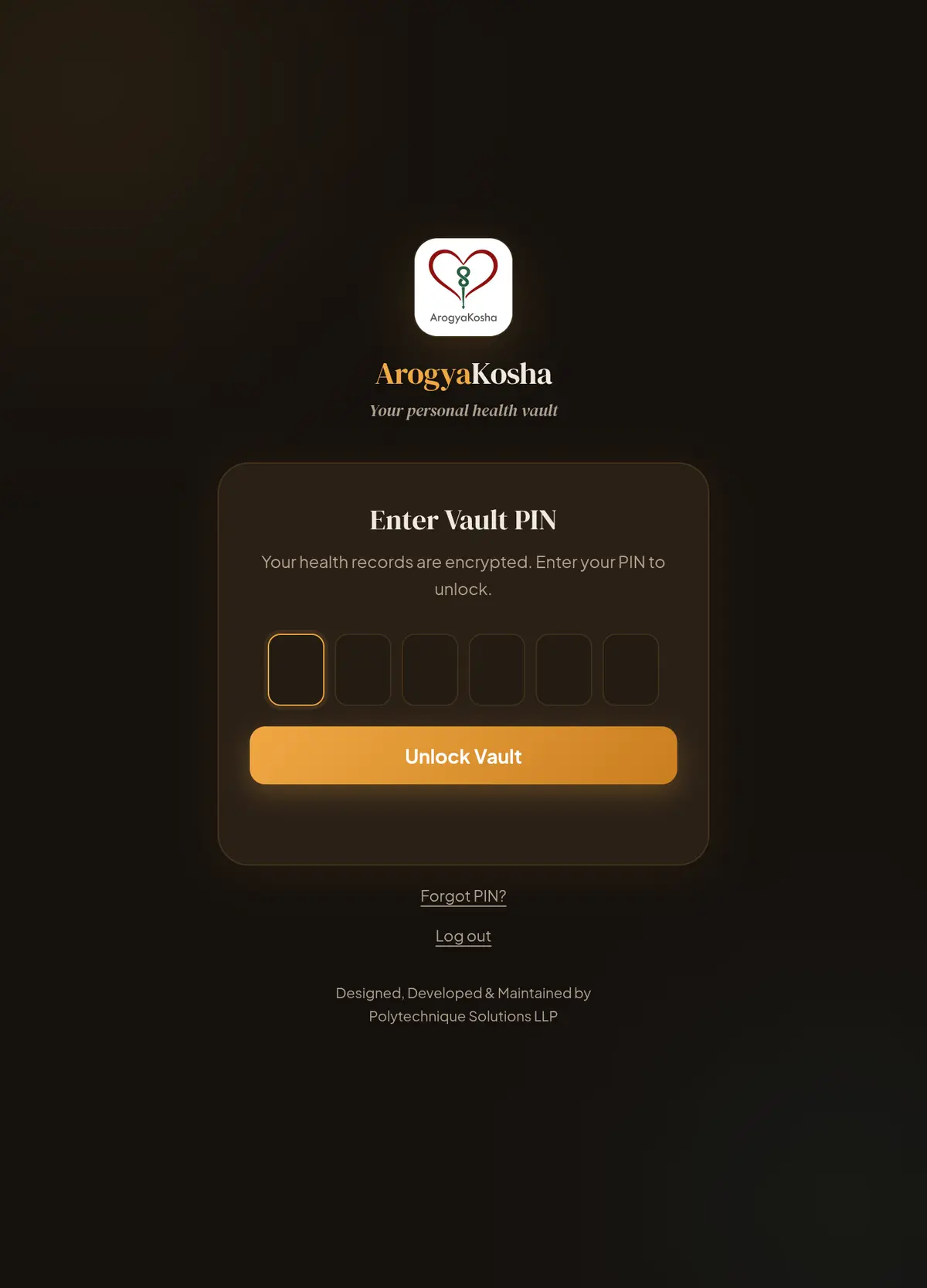
Each time you sign in — and again whenever you open ArogyaKosha in a new browser tab or window — you're asked to Enter Vault PIN. Type the 6 digits and select Unlock Vault.
For your safety the web portal locks itself after 15 minutes without activity and asks for your PIN again. Closing the browser tab also locks it.
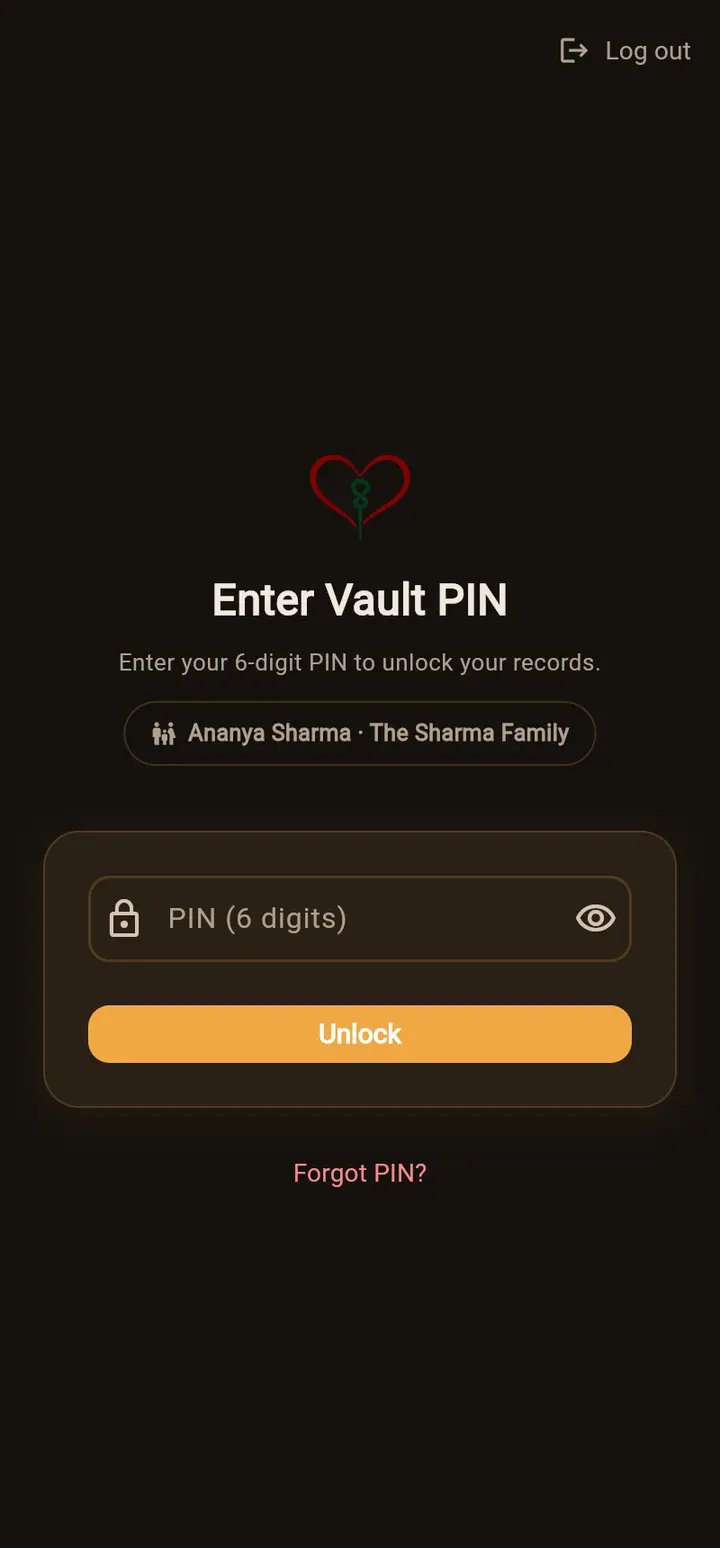
The app opens on the Enter Vault PIN screen, showing whose vault this is. Type the PIN and tap Unlock, or use your fingerprint/face if you've turned on biometric login.
Forgot your PIN?
- Choose “Forgot PIN?”It's below the unlock button.
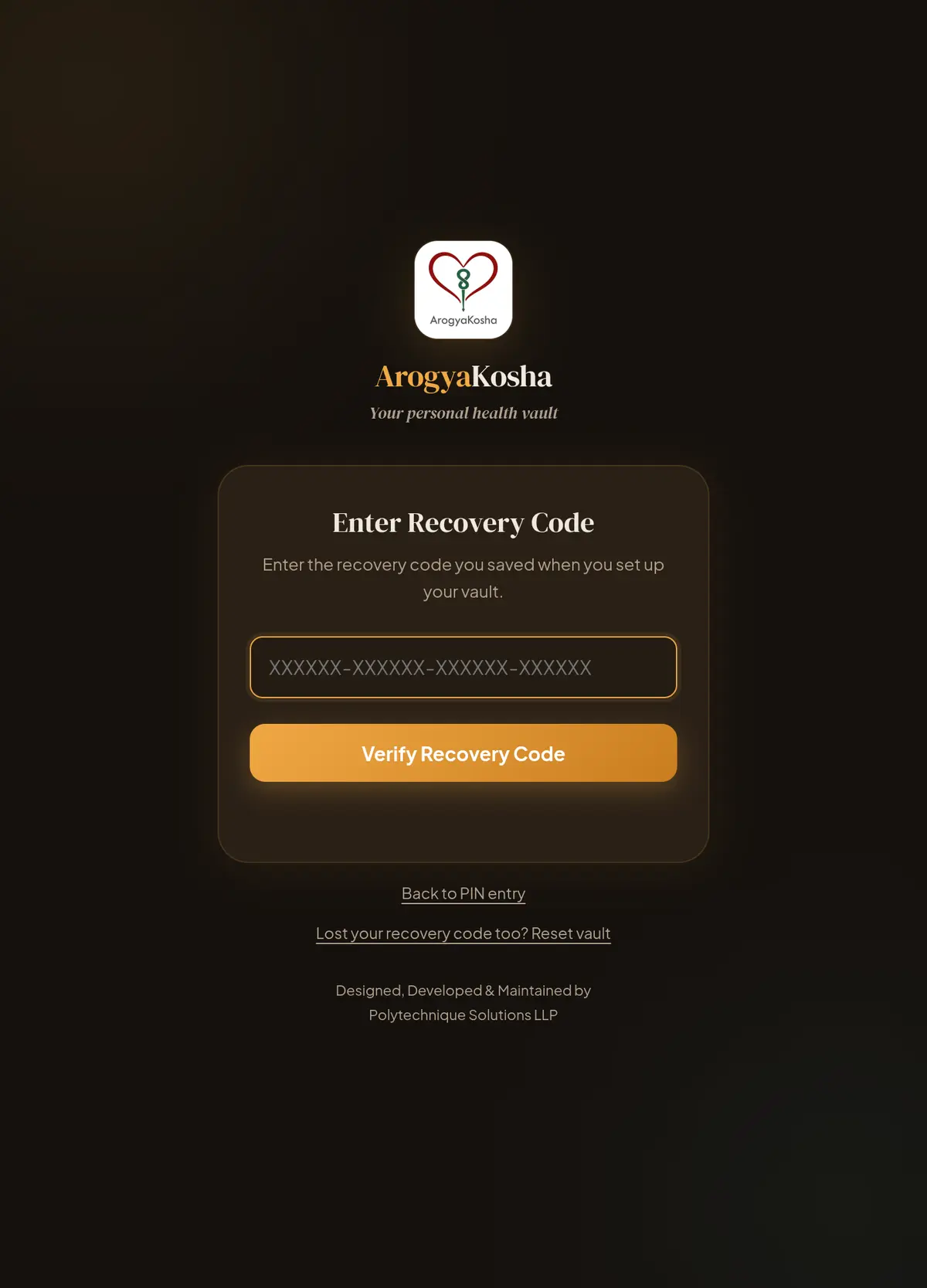
- Enter your recovery codeType the code you saved during setup and select Verify Recovery Code.
- Set a new PINChoose and confirm a new 6-digit PIN, then select Save New PIN. All your records stay exactly as they were.
After recovering, generate a fresh recovery code from Security settings if you think the old one may have been seen by someone else.
Lost both the PIN and the recovery code
Choose Lost your recovery code too? Reset vault. This permanently deletes every record and file in the vault so you can start again with a new PIN. You must type DELETE to confirm. This cannot be undone, and ArogyaKosha cannot recover the data afterwards.
One PIN for the whole family
A family vault has a single shared PIN, set and managed by the family owner. When you join someone's family you unlock with their family PIN — you don't create your own.
- If you've joined a family whose owner hasn't set up the vault yet, you'll see Vault Not Set Up Yet. Ask the owner to open ArogyaKosha and set the PIN, then choose Check Again.
- Only the owner can change the PIN or generate a new recovery code. Tell your family when you change it.
Good habits
- Never share your PIN or recovery code with anyone outside your family — ArogyaKosha staff will never ask for them.
- Don't use the same 6 digits as your phone or bank PIN.
- Sign out of ArogyaKosha on shared or public computers.