
Add a document
Scan or upload a prescription, lab report, certificate or insurance paper, file it under the right person, and optionally let AI fill in the details.
Documents are the fastest way to get records into ArogyaKosha. Photograph a prescription or upload a PDF lab report, and ArogyaKosha files it under the right person with its date, doctor or lab — and can read the medicines, diagnoses and test results out of it for you.
Document types
| Type | Details you can record | What it adds |
|---|---|---|
| 📋 Prescription | Hospital / clinic, doctor, visit date | A visit, plus its diagnoses and prescribed medicines (when read by AI) |
| 🔬 Lab report | Lab name, report date | Lab report entries for each test (when read by AI), or add results yourself later |
| 📜 Certificate | Type (Medical, Fitness, Disability, Government Scheme, Other), date, valid-till date | The certificate itself |
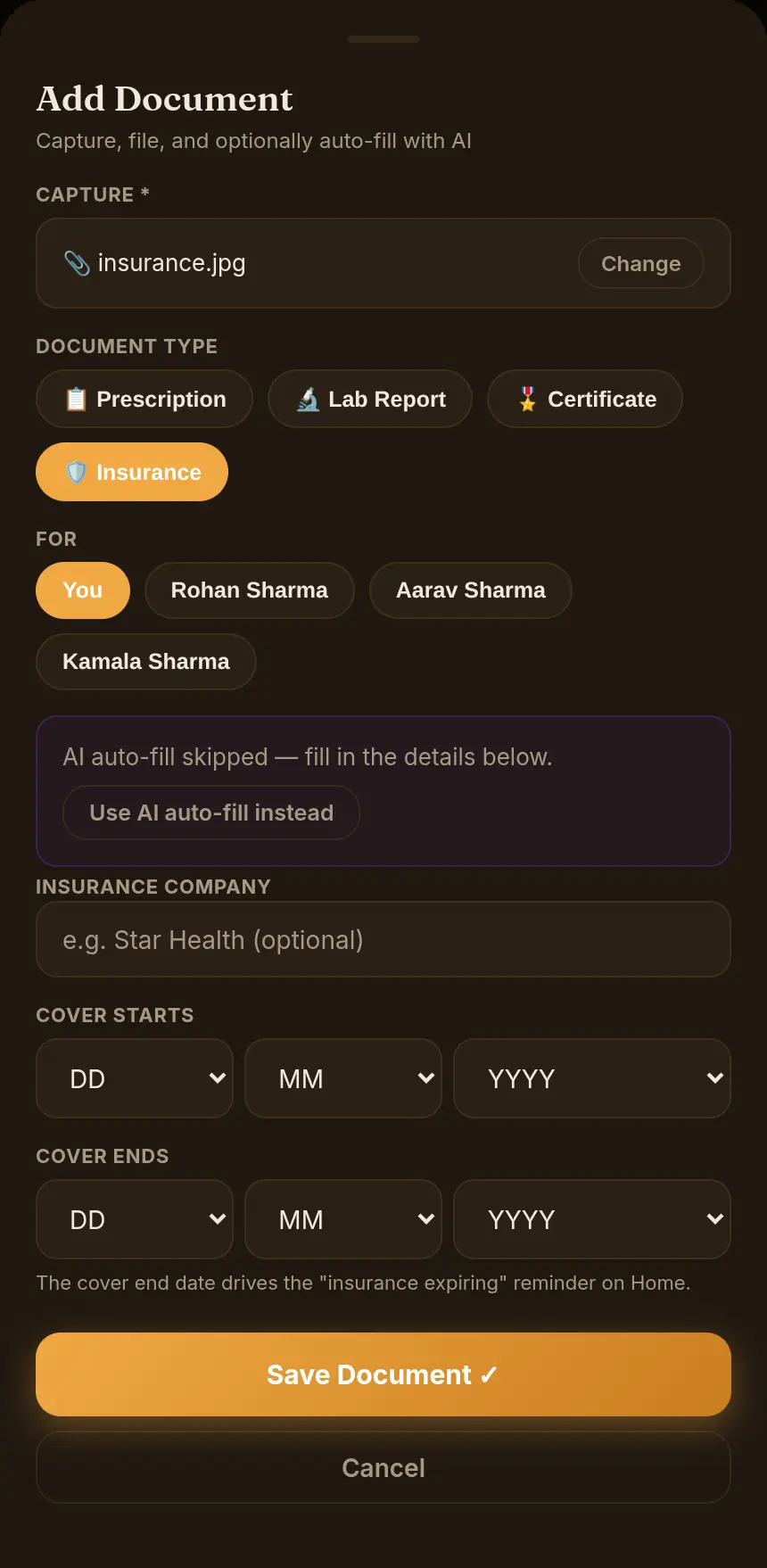
| 🛡️ Insurance | Insurance company, cover start and end dates | The policy, and the “insurance expiring” reminder on Home |
Files can be PDF, JPG, PNG or WEBP. The maximum size is shown on the upload screen. Files are encrypted on your device before upload, just like your other records.
Add a document
- Open DocumentsOn Home, select the Documents card, then the round + button.
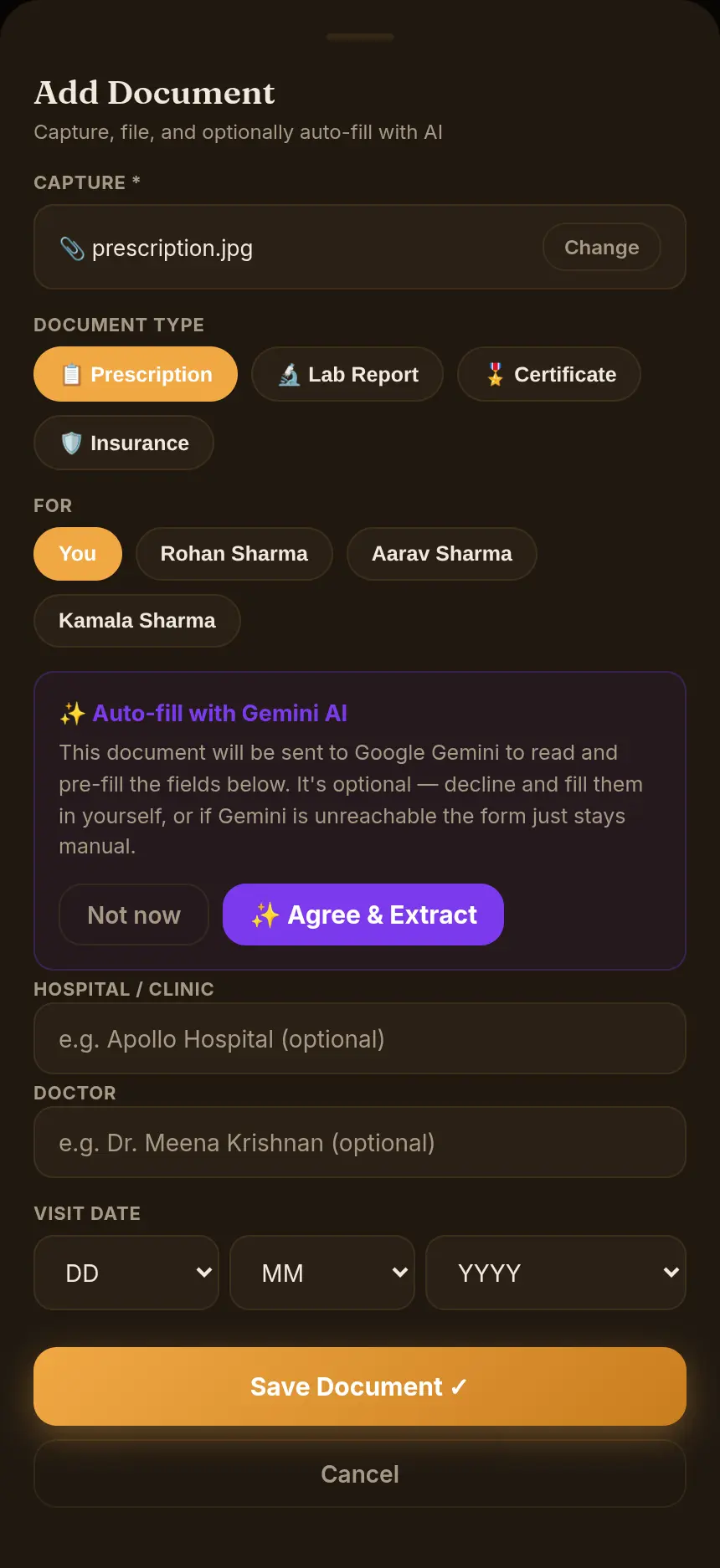
- Capture the fileChoose 📷 Take Photo to use your camera, or 📁 Upload File to pick a file.
- Pick the type and the personUnder Document Type, choose Prescription, Lab Report, Certificate or Insurance. Under For, choose who it belongs to — you, a family member or a dependent.
- Auto-fill with AI — or notChoose ✨ Agree & Extract to let AI read the document and fill in the fields, or Not now to type them yourself. How AI auto-fill works →
- Check the details and saveReview the fields for the chosen type and select Save Document ✓.
- Open DocumentsOn Home, tap + Upload on the Documents card.
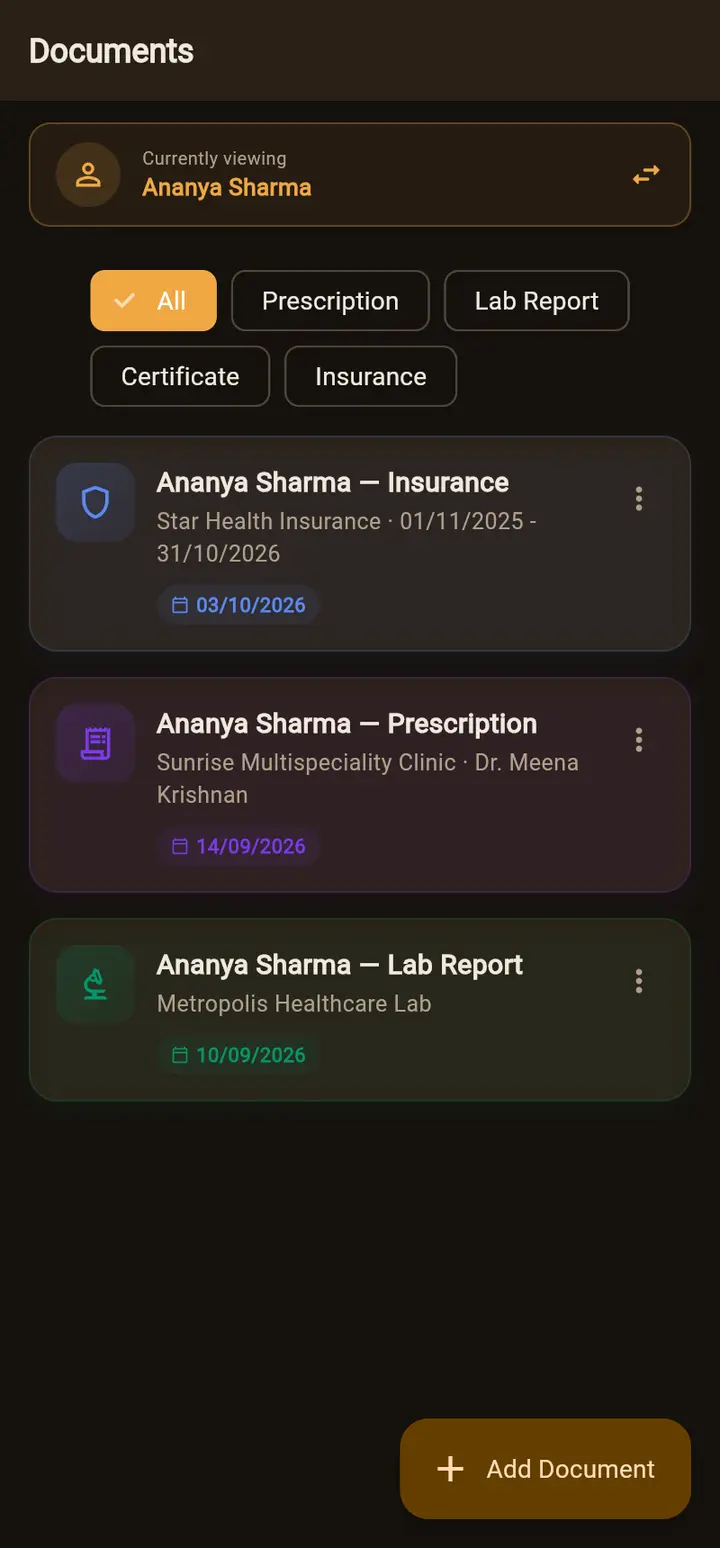
- Choose the type with the filter chipsThe new document takes the type of the selected chip — Prescription, Lab Report, Certificate or Insurance. With All selected, it uses the type you added last. Check the Currently viewing bar shows the right person, and switch if needed.
- Tap Add DocumentThen Scan to photograph it, or Upload to pick a PDF or image.
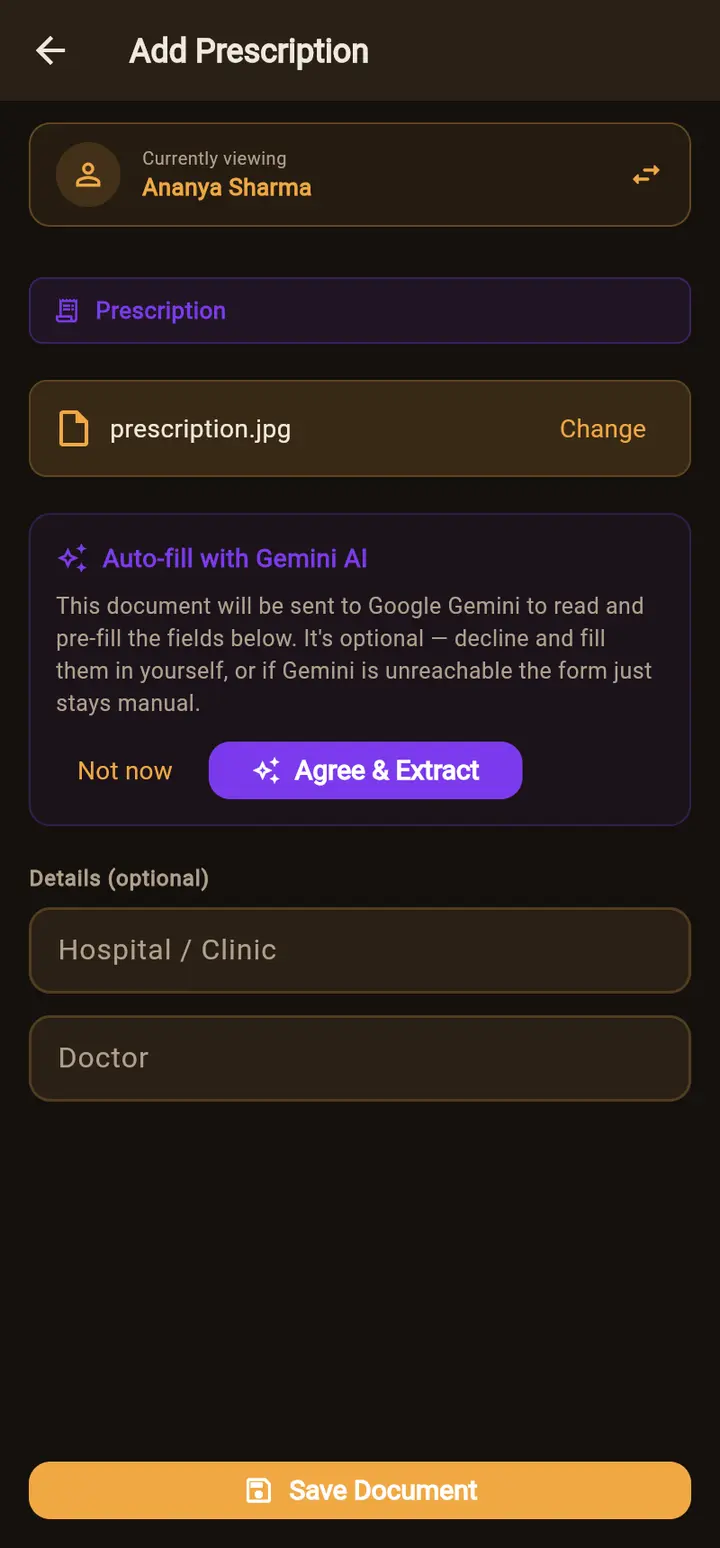
- Auto-fill with AI — or notTap Agree & Extract to let AI fill in the details, or Not now.
- SaveFill in or correct the optional details and tap Save Document.
AI auto-fill
AI auto-fill is optional and asked every time. If you choose Agree & Extract, that one file is sent to Google Gemini to read, and the fields are pre-filled with what it finds:
- Prescriptions — hospital, doctor and date, plus the diagnoses and medicines on it. When you save, they're added to Medical Records and Prescriptions, linked to the document. Keep Also list the medications under Current Medications ticked (web) or Add to Current Medications on (app) if the person is taking them now.
- Lab reports — lab name, date and each test result, which become entries under Lab Reports.
- Insurance and certificates — company, dates and certificate type.
Always review before saving. AI can misread handwriting. If the document names a different patient from the person you're filing it under, ArogyaKosha warns you so you can pick the right person under For.
If you choose Not now, or the AI service can't be reached, nothing is sent and the form simply stays manual — you can always save the document yourself. Changed your mind on the web? Select Use AI auto-fill instead.
Tips for good scans
- Lay the paper flat in good light, with all four corners in the frame.
- Upload multi-page reports as a single PDF.
- Use the date on the document (visit or report date), not today's date — it decides where the record appears on the Timeline.