
View, edit & delete documents
Open a document's file, see everything recorded from it, correct its details, move it to another person, or delete it.
Each document keeps its file together with everything recorded from it — the visit, diagnoses, medicines and test results. That's what lets you open a prescription and see exactly what the doctor wrote, and what was recorded from it, in one place.
Find a document
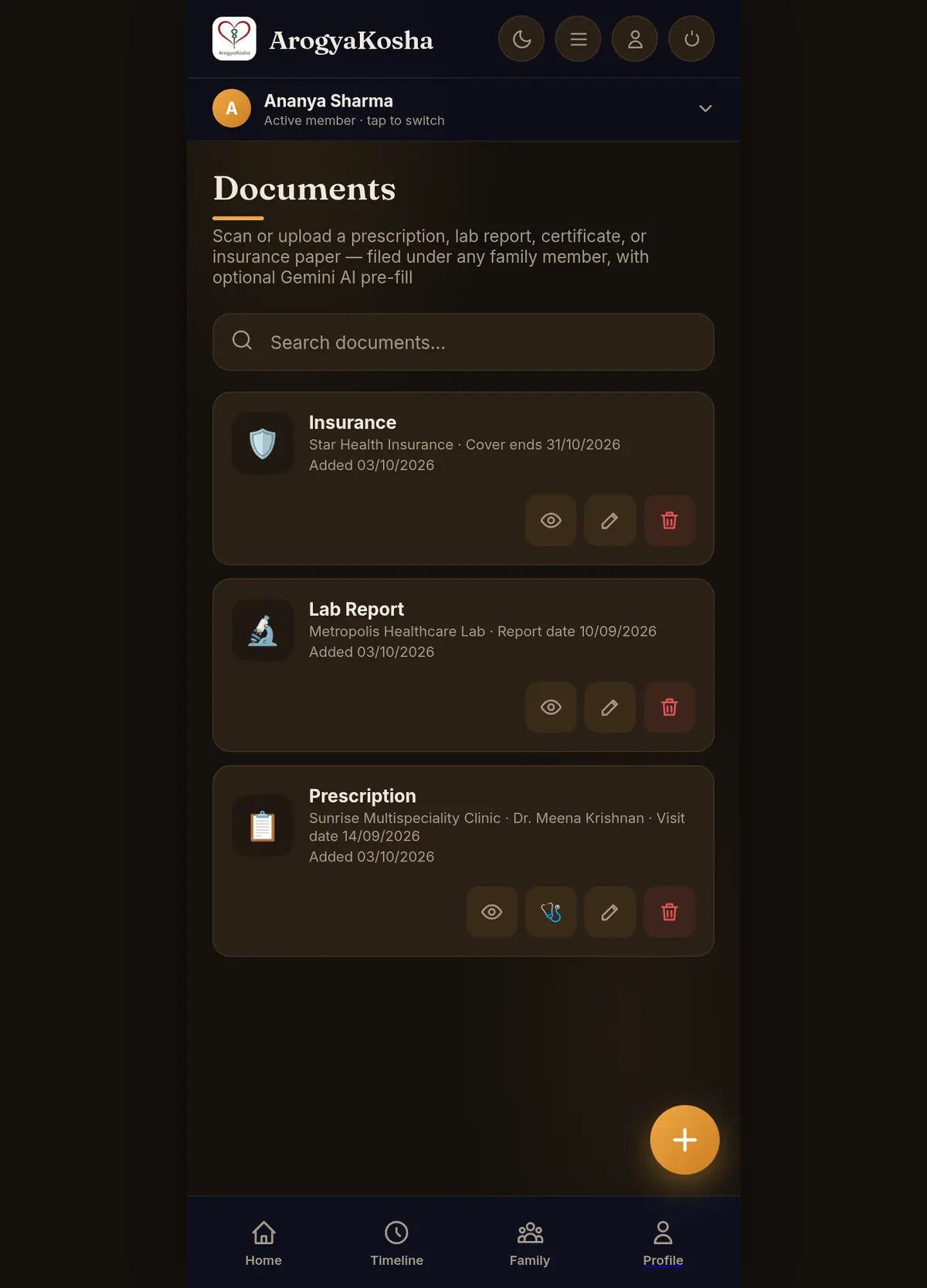
Open Documents from Home. Documents are listed newest first with their type and key details. Type in Search documents… to narrow the list.
Each row has buttons on the right:
| Button | What it does |
|---|---|
| 👁 View | Opens the file in a new tab. It's decrypted on your device first. |
| 🩺 Add diagnosis | Prescriptions only — records a diagnosis from this visit, linked to the document. |
| ✏️ Edit | Change the details, the type, the person it belongs to, or replace the file (see below). |
| 🗑 Delete | Deletes the document and everything recorded from it (see below). |
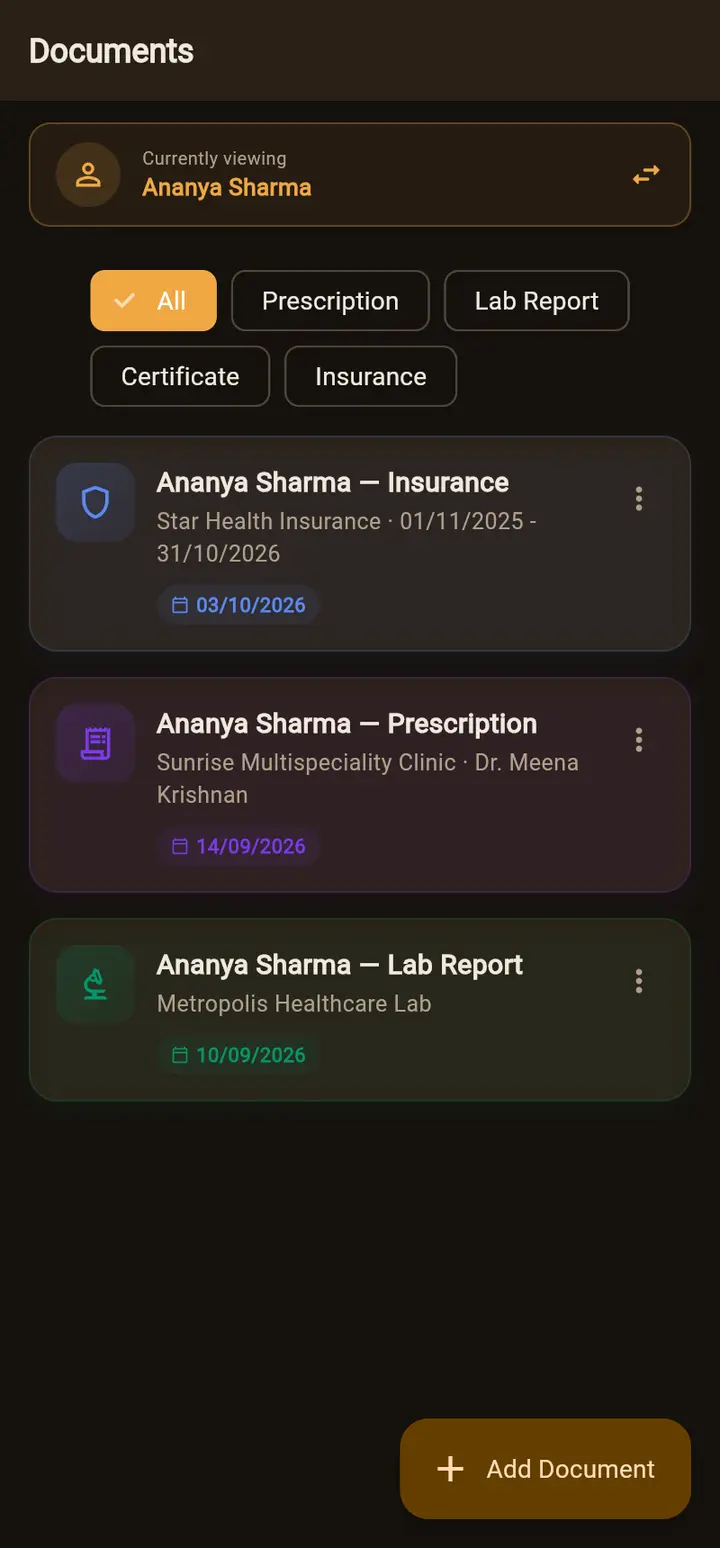
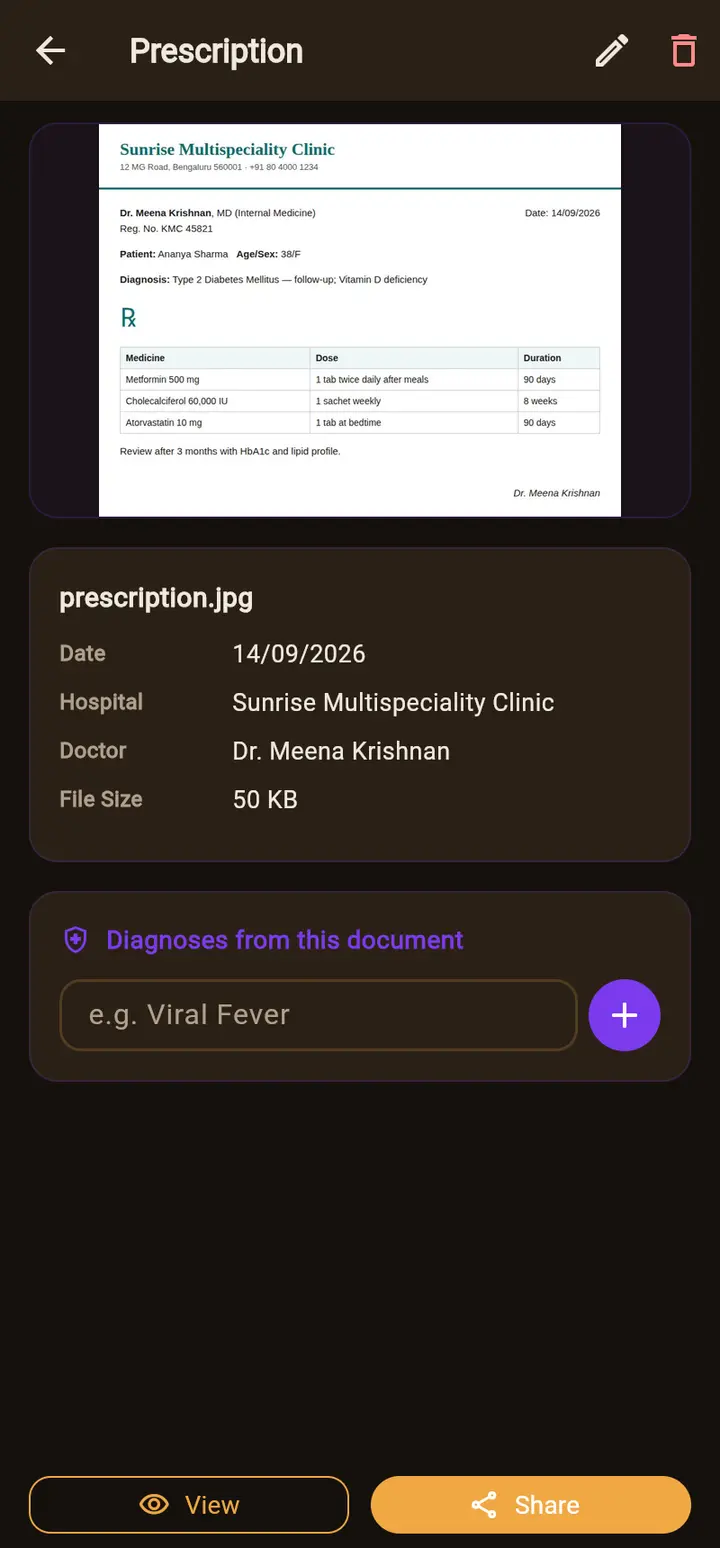
Open Documents from Home. Use the chips (All, Prescription, Lab Report, Certificate, Insurance) to filter. Tap a document to open its detail screen:
- A preview of the file, with its date, hospital, doctor and size underneath.
- Sections listing everything linked to it — Diagnoses, Medications, Lab reports and Admission notes from this document. Type a diagnosis and tap + to add one straight from here.
- View opens the full file. Share sends it with your phone's share sheet.
Edit a document
Use the edit (pencil) button — on the document's row on the web, or at the top of the detail screen in the app. You can:
- Correct the details — hospital, doctor, dates, lab, insurer or certificate type. For a prescription, a changed hospital, doctor or date is also copied to the visit recorded from it.
- Change the type — this only changes how the document is filed. Fill in the fields for the new type afterwards.
- Move it to another person — choose a different family member or dependent under Belongs to (web) or Move (app). Use this when something was filed under the wrong person.
- Replace the file — pick a better scan. The new file replaces the old one when you save.
Delete a document
Deleting a document also deletes everything recorded from it — its visit, diagnoses, medicines, lab results and admission notes. ArogyaKosha tells you exactly what will be removed before you confirm, for example “This will also permanently delete: 3 medications, 1 diagnosis.”
Deletion is permanent. If you only want to fix one wrong medicine or result, edit or delete that single entry from its own list instead.
Documents you didn't upload
When you type a medicine, prescription, lab result, admission or diagnosis in by hand, ArogyaKosha files it under a document of its own automatically — one per visit — so every record has a home. They have no file and don't appear in your Documents list. Chronic conditions are the exception: they're ongoing, not tied to a visit, so they stand alone.