
Family vault
Keep the whole household's records in one place — adults with their own login, and children or elderly parents as dependents.
A family vault holds health records for everyone in your household under one shared Vault PIN. There are two kinds of people in a family:
| Account members | Dependents | |
|---|---|---|
| Who | Adults with their own ArogyaKosha login — e.g. your spouse | Children, elderly parents or anyone without a login |
| How they're added | By email invitation | Added directly by any member |
| Can sign in | Yes, with their own account and the family PIN | No — family members manage their records |
Everyone in the family — members and dependents — counts towards your plan's limit: 4 people on the free trial and Basic, 6 people on Pro. See Plans.
Create your family vault
Select Family in the bottom bar, then Create Family Vault. Give it a name such as The Sharma Family. You become the family owner, and your existing Vault PIN becomes the family's PIN.
Tap Family in the bottom bar, then Create Family, and enter a family name. You become the family owner.
The Family screen
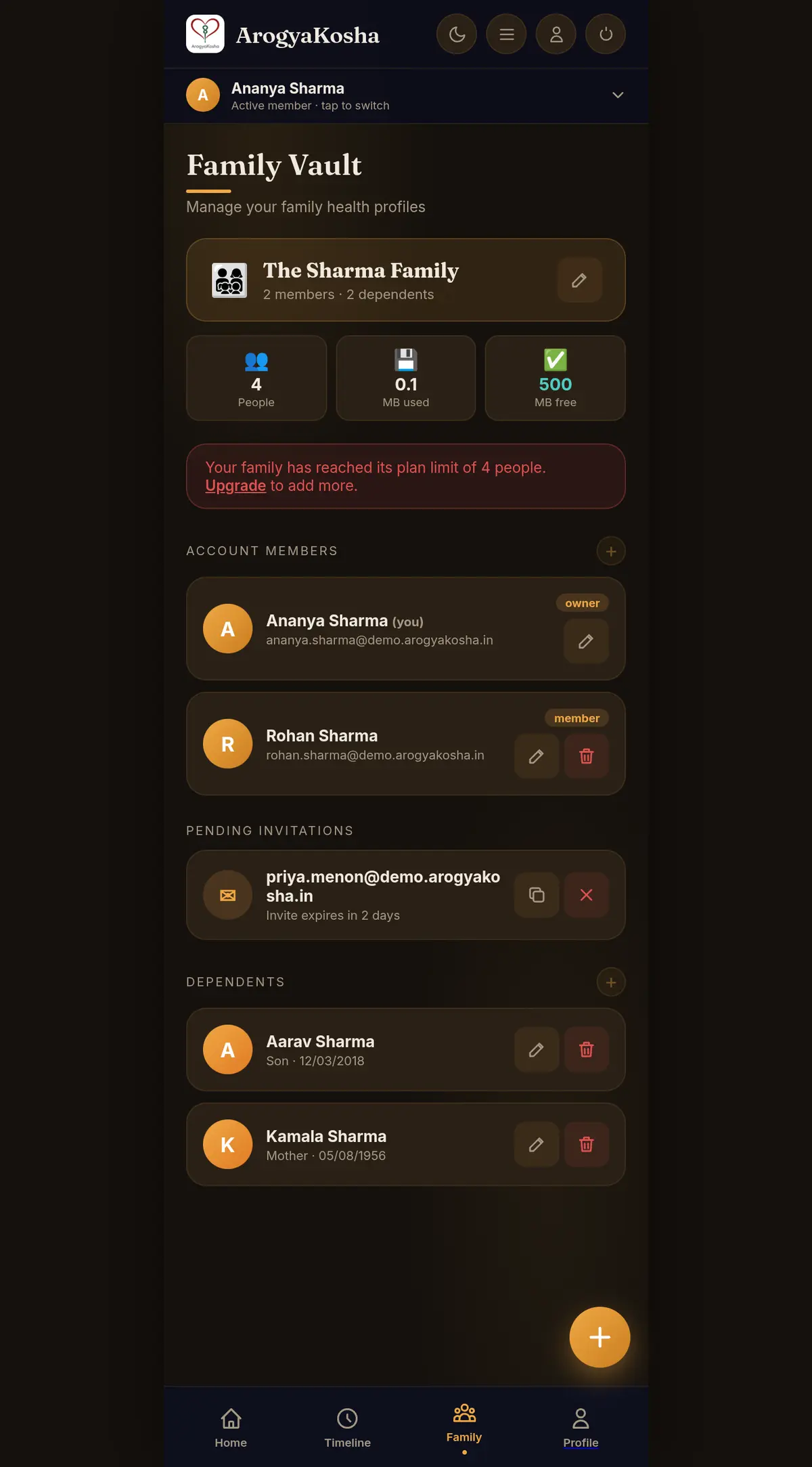
The Family screen shows the family name (with a pencil to rename it), how many people and how much storage the family is using, then three lists: Account Members, Pending invitations and Dependents. Each list has its own + button.
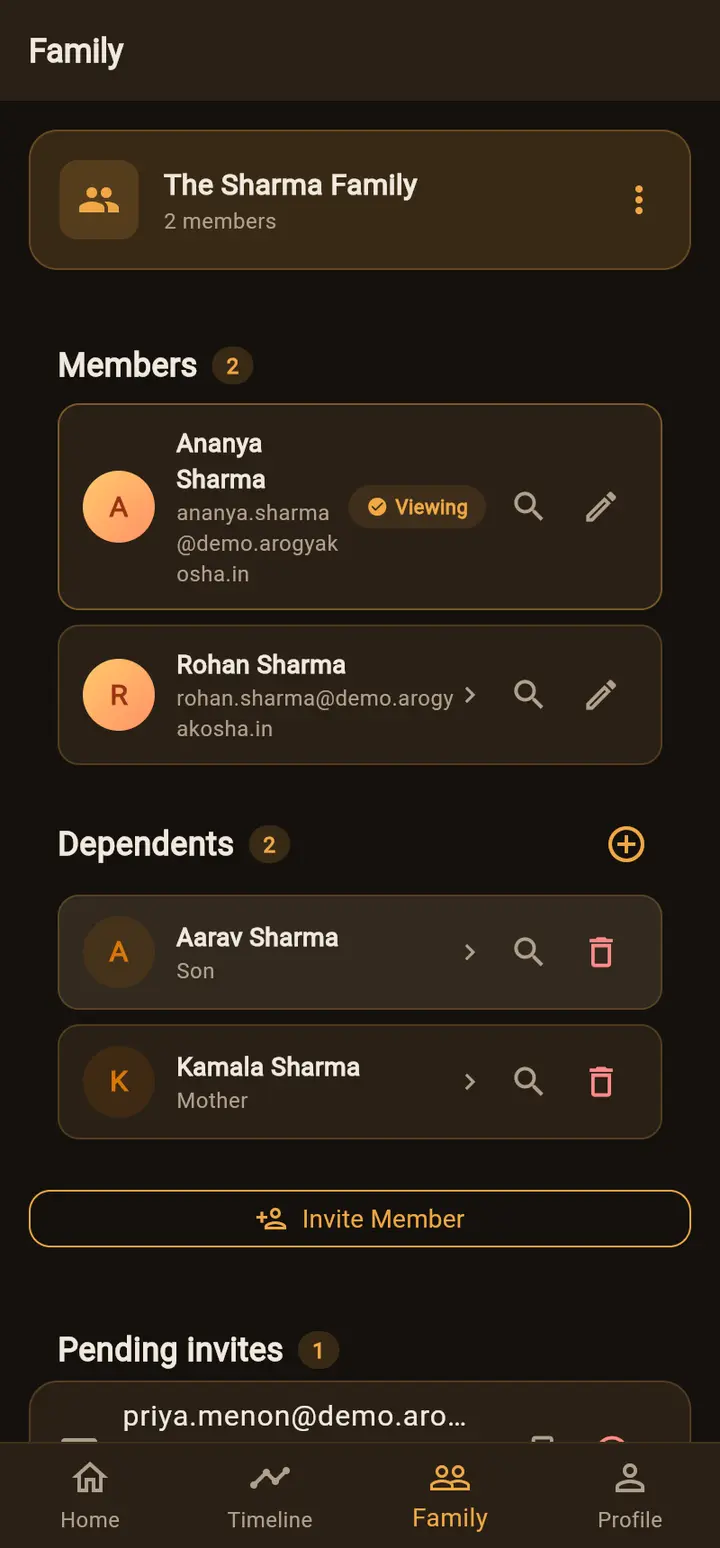
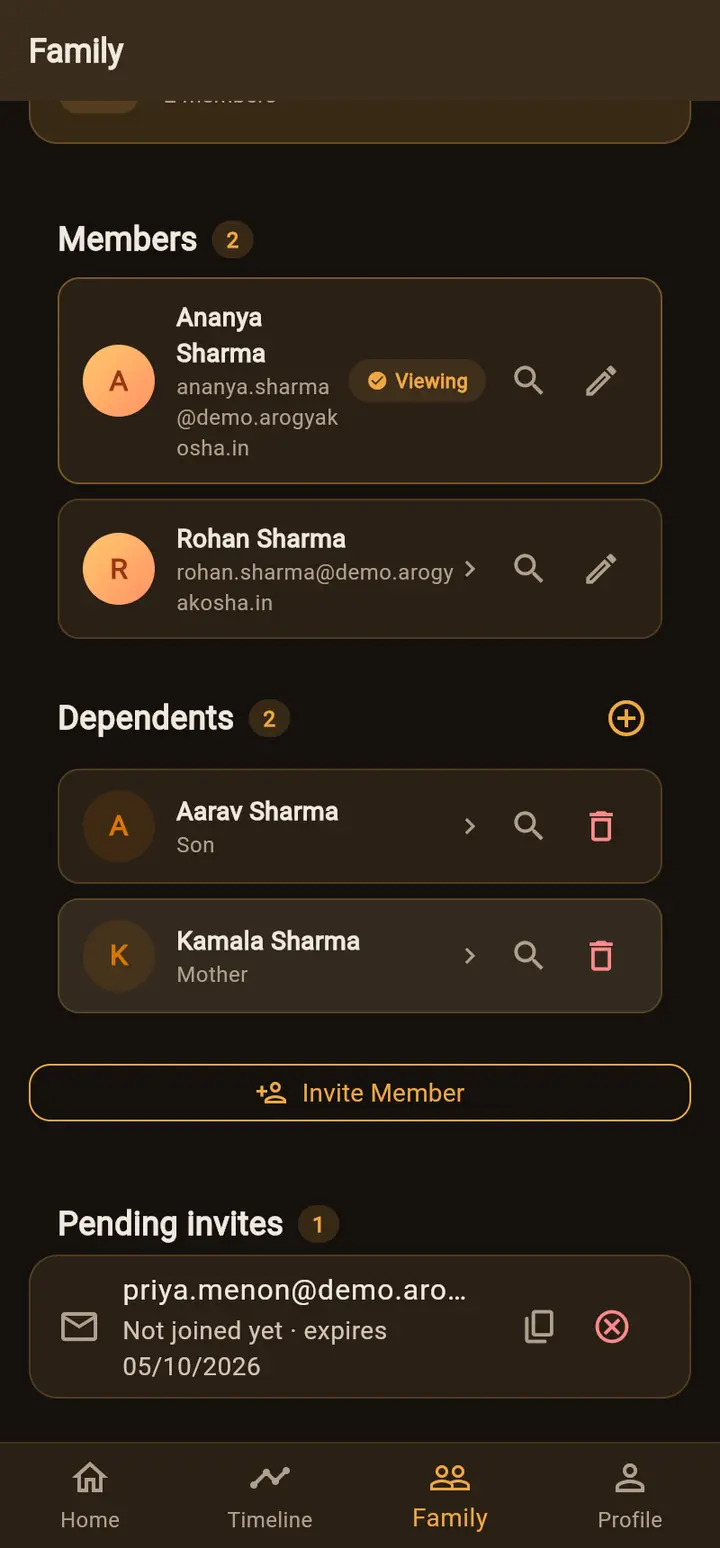
The Family screen shows the family card (its ⋮ menu has Rename Family and Leave Family), then Members, Dependents, Invite Member and Pending invites. Tap a person to switch to their records — a Viewing badge marks whose records are open. The magnifier icon searches that person's records.
Add a dependent
- Open the formSelect + next to Dependents (web) or the ⊕ next to Dependents (app).
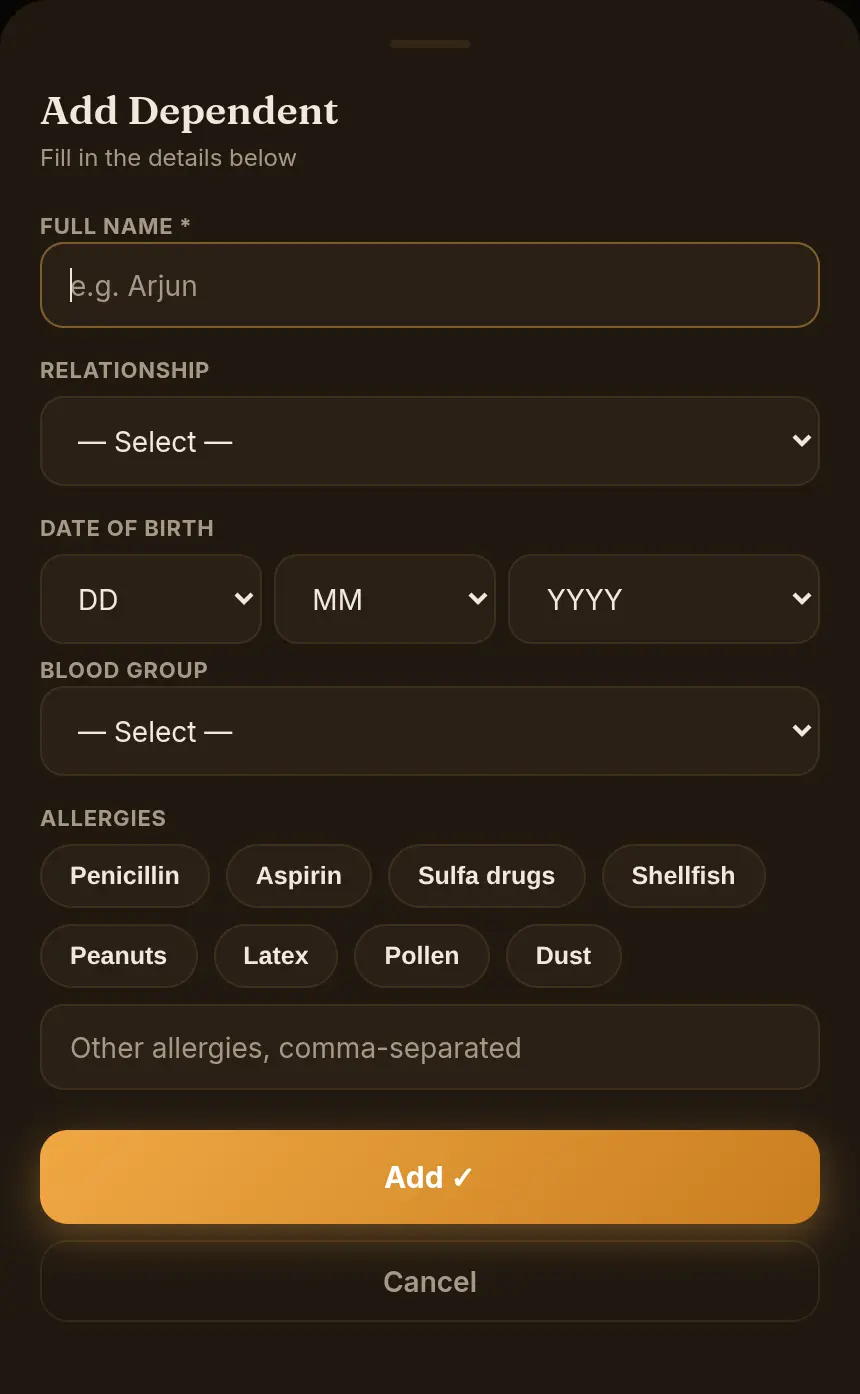
- Enter their detailsFull name (required), relationship (Son, Daughter, Mother, Father…), date of birth, blood group and any allergies.
- SaveThey appear under Dependents and in the member switcher straight away.
Work on someone else's records
Switch the active member first — tap the member bar at the top (web) or a person on Home or Family (app). Everything you then view or add belongs to that person until you switch again. See Switch whose records you see.
Edit or remove people
- Edit — the pencil on a member or dependent updates their name, date of birth, blood group and allergies. To change your own details, use Profile. Email addresses and passwords can only be changed by their owner.
- Remove a dependent — the bin icon removes them from the family.
- Remove an account member — on the web, the family owner can remove another member with the bin icon on their card.
- Leave a family (app) — family card ⋮ → Leave Family. You'll no longer see the family's records.
Reached your plan's limit? The + buttons are disabled and a banner offers an upgrade. Upgrading from Basic to Pro raises the limit from 4 to 6 people. You pay only the difference for the time left on your plan.