
The Home screen
A tour of the Home screen — your subscription status, health snapshot, reminders and shortcuts to every kind of record.
Home is where you land after unlocking your vault. It always shows the active member — the person whose records you're looking at — and gives you one-tap access to everything filed for them.
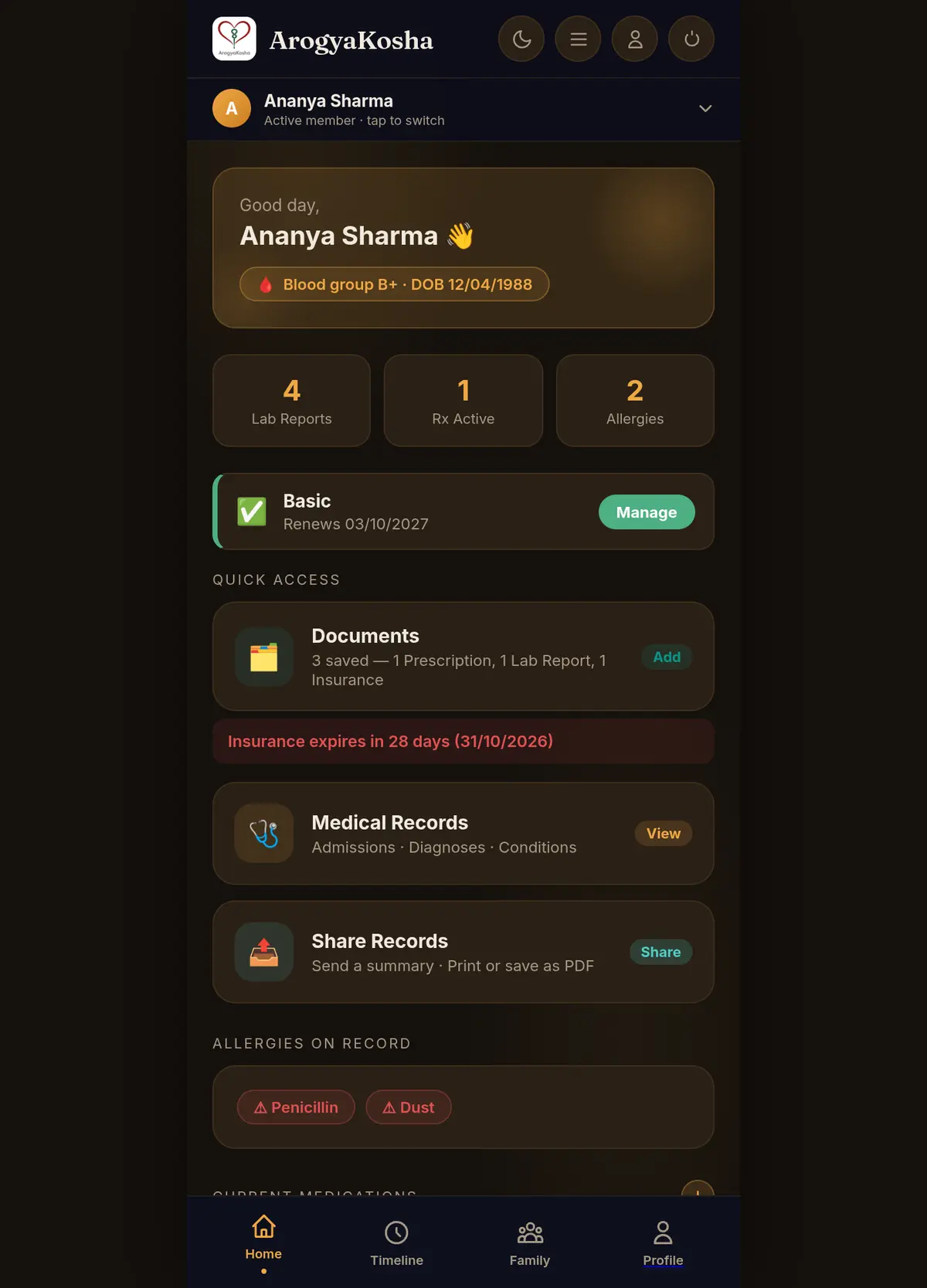
Header
- Theme (moon/sun), ☰ menu, profile and log out buttons sit at the top right.
- The active member bar below shows whose records you're viewing — Active member · tap to switch. Tap it to switch to another family member or dependent.
What's on the page
- Greeting card with blood group and date of birth.
- Quick stats — number of lab reports, active prescriptions and allergies. Tap a number to jump to that list.
- Subscription banner — your plan and days remaining, with Upgrade or Manage.
- Quick Access — Documents (with a count by type), Prescriptions, Lab Reports, Medical Records and Share Records.
- Insurance reminder — shows when your soonest insurance cover ends. It turns red when that is within 30 days, or already past.
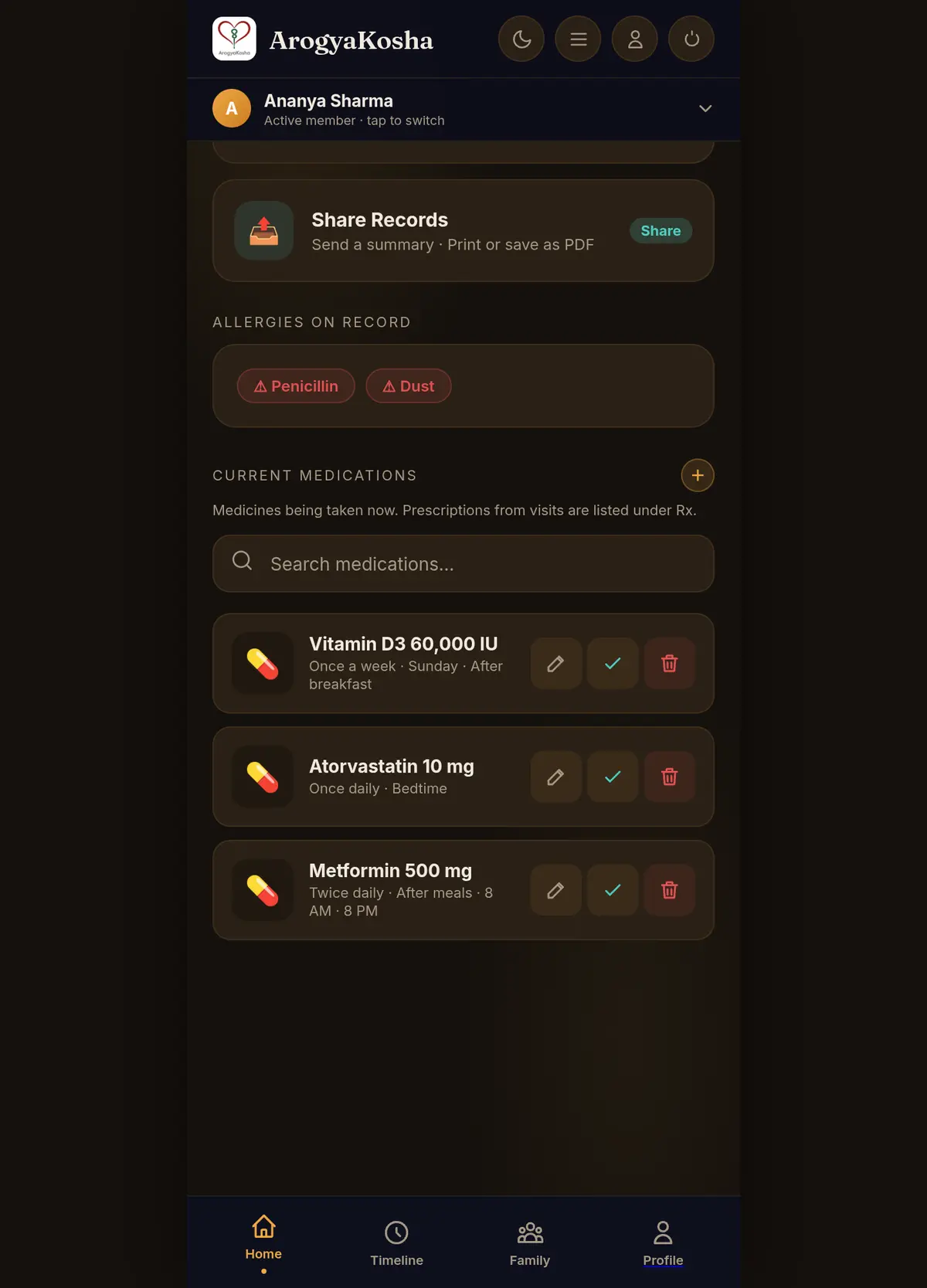
- Allergies on record and Current Medications, with a search box and edit / mark-complete / delete buttons on each medicine.
Getting around
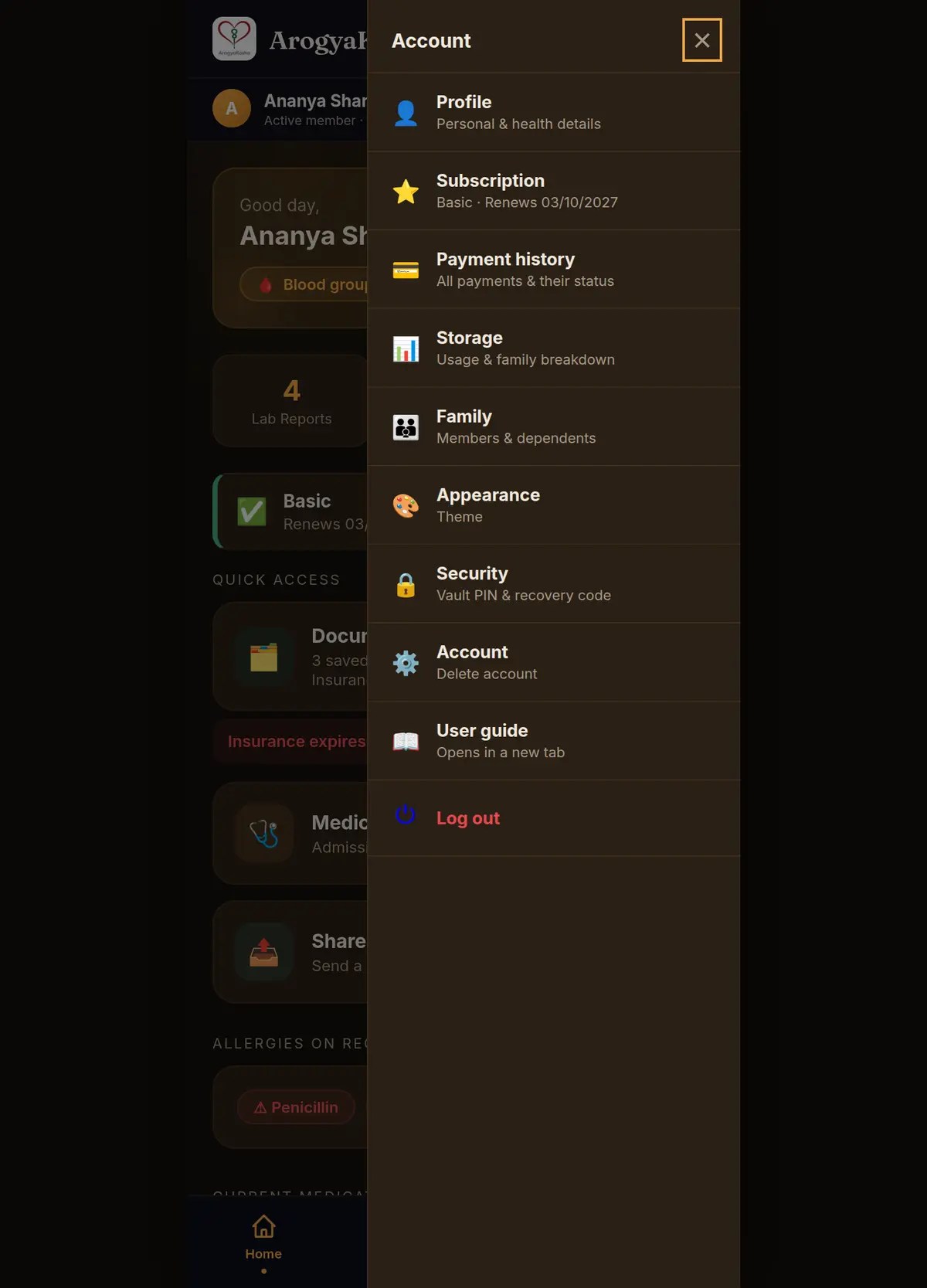
The bottom bar has four tabs: Home, Timeline, Family and Profile. Documents, Prescriptions, Lab Reports and Medical Records are reached from Quick Access on Home (the quick stats at the top link to them too). The ☰ menu links to your profile, subscription, payment history, storage, family, appearance, security, account settings and this guide.
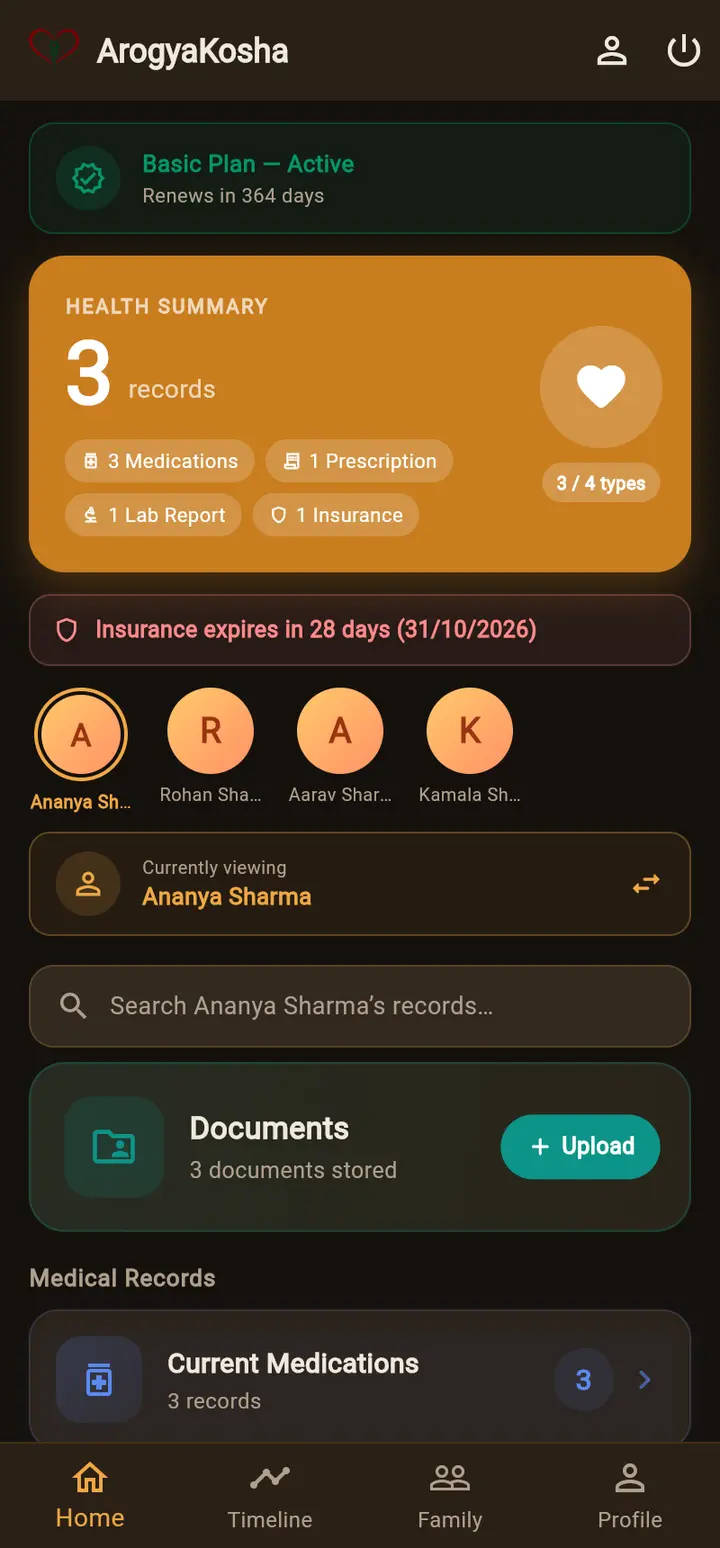
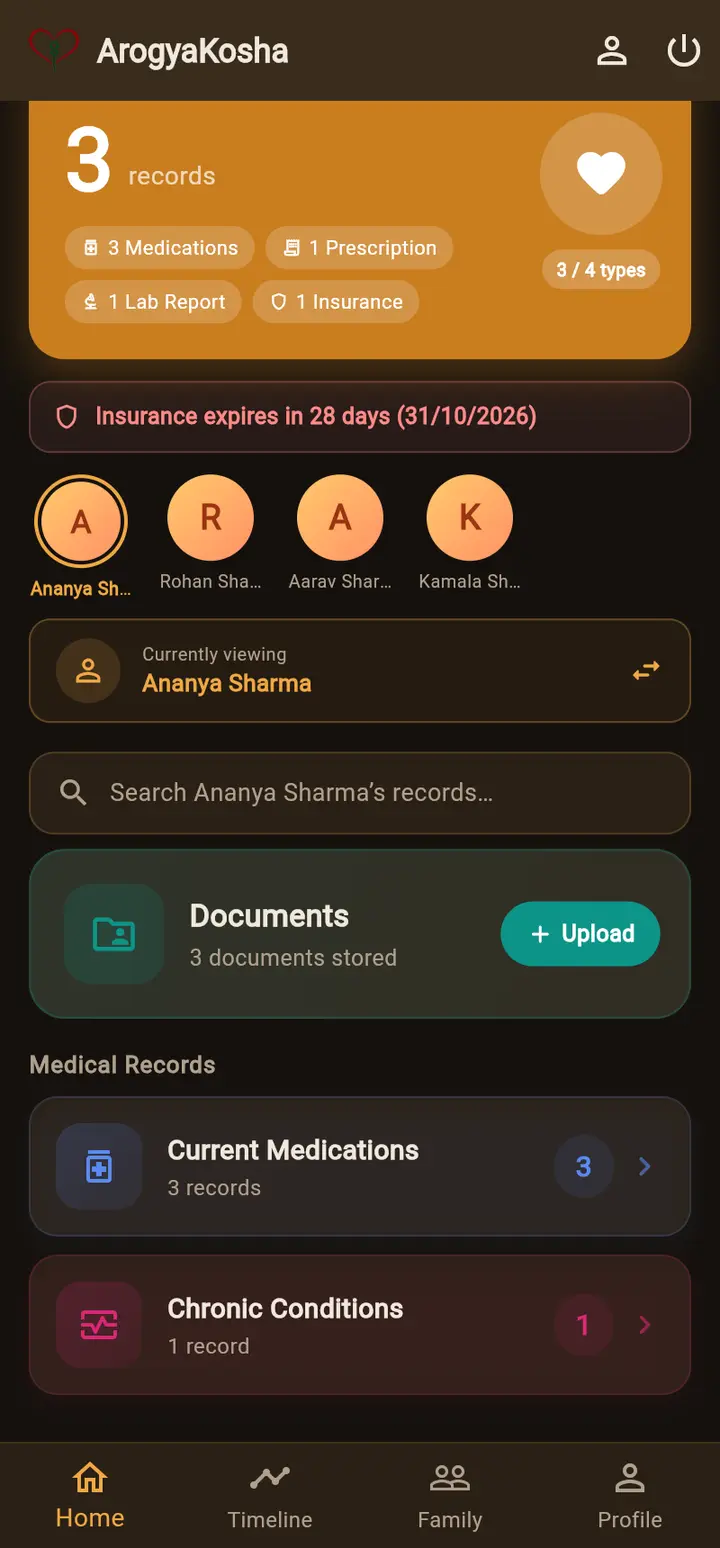
- Plan status — your plan and when it renews, or how many trial days are left with a Subscribe button.
- Health Summary — how many records the active member has, broken down by type (medications, prescriptions, lab reports, insurance…).
- Insurance reminder — the soonest policy end date, in red once it's within 30 days or past.
- Family avatars and the Currently viewing bar — tap a person (or the ⇄ icon) to switch whose records you see.
- Search — search everything recorded for the active member. See Timeline & search.
- Documents with an Upload button, then Medical Records — Current Medications, Chronic Conditions and the other record lists.
The bottom bar has Home, Timeline, Family and Profile. The person icon and power icon at the top open your profile and sign you out.
Switch whose records you see
Everything you view or add on Home applies to the active member. To work on someone else's records — say your mother's — switch first:
Tap the active member bar at the top. In Switch Profile, pick a family member or dependent. Choose Manage Family to add people.
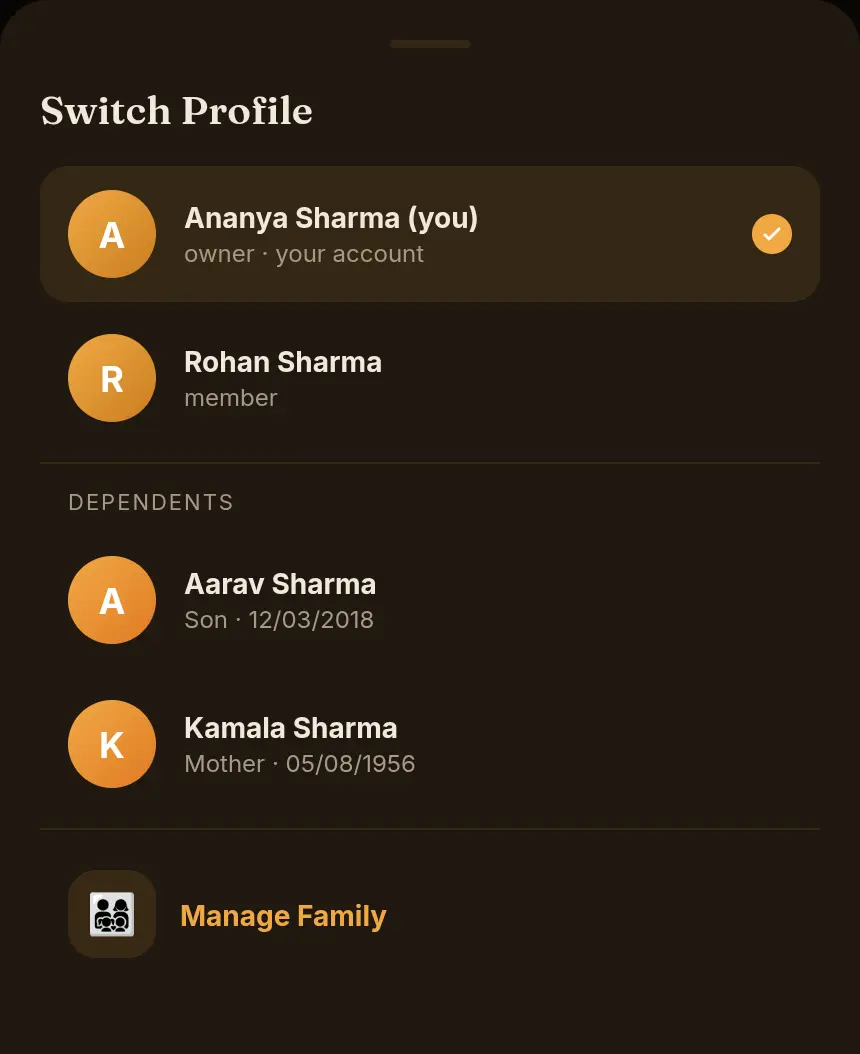
Tap a person's avatar on Home, or tap the Currently viewing bar (it appears on every records screen too) and choose who to view.
The active member's name appears in page titles such as “Ananya Sharma's complete health history”, so you can always tell whose records are on screen.
If your plan has ended
Your records stay safe. On the web you're taken to the plans page until you renew; in the Android app your records become read-only — you can view and export them but not change them. See Plans, payments & invoices.